How to Check Battery Health on Android & iOS

Knowing how to check battery health helps you decide between settings tweaks and replacement. This guide covers iOS and Android paths and links to common battery issues when readings look fine but runtime does not.
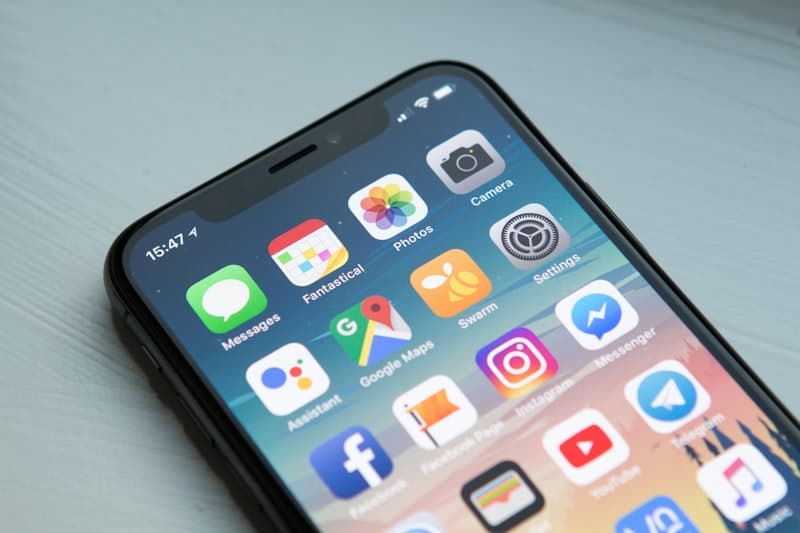
iPhone: Battery Health & Charging
- Open Settings → Battery → Battery Health & Charging.
- Review Maximum Capacity (vs when new).
- Check Peak Performance Capability—if the battery cannot deliver peak power, iOS may throttle performance (with an option to disable on some models).
Apple’s Optimized Charging can also change how full the battery is when you unplug—this is not the same as low capacity.
Android: Where to Look
Android does not use one universal menu:
- Pixel: Settings → Battery → Battery information (varies by version).
- Samsung: Settings → Battery and device care → Battery.
- Other brands: search “battery” in Settings; some OEMs hide health behind service menus or support apps.
If the OS does not show health %, use battery usage graphs to spot abnormal drain, then pair with phone draining fast fixes.
Third-Party Apps
Apps like AccuBattery (Android) estimate cycle wear over time. Treat them as directional, not lab-grade.
When Numbers Match Real Life
If Maximum Capacity looks okay but the phone dies early, investigate calibration quirks, heavy apps, or failing cells—and swollen battery signs if the chassis changes shape.

Bottom Line
iOS makes capacity easy to see; Android requires brand-specific paths or apps. Combine readings with real-world use and our battery lifespan guide.
Frequently Asked Questions

Written by
BBGuides Editorial Team
Our team of battery experts researches and tests every guide to ensure accuracy. We're committed to helping you get the most out of your phone, laptop, and solar batteries.