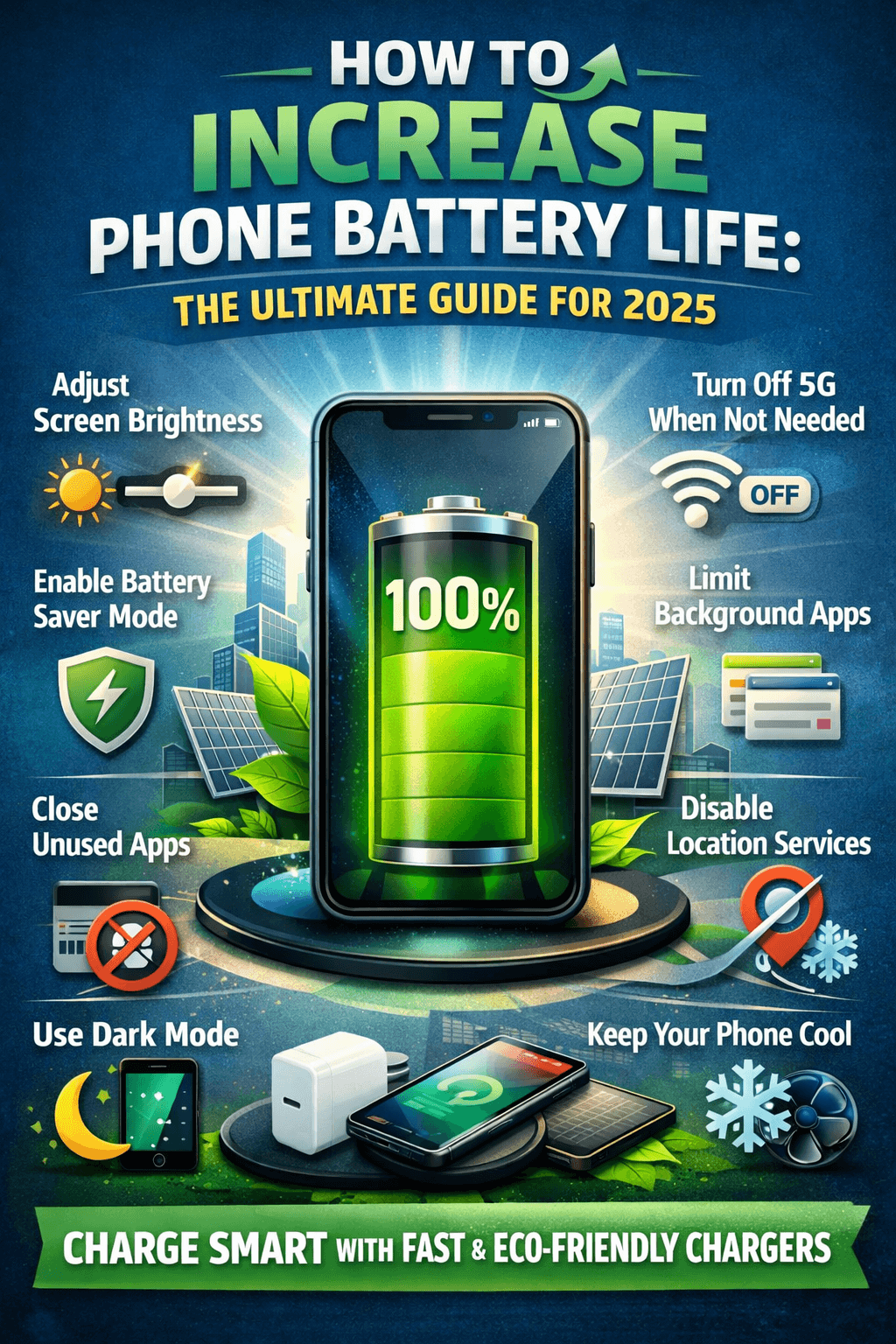
How to Increase Phone Battery Life: The Ultimate Guide for 2025
Let's be real — there's nothing more frustrating than watching your phone battery drain at 11 AM when you've got a full day ahead of you. You charged it overnight, you woke up at 100%, and somehow, by lunchtime, you're hunting for a charger like your life depends on it.
Sound familiar?
You're not alone. Battery life is consistently one of the top complaints among smartphone users worldwide. And while phone manufacturers keep promising "all-day battery life," the reality is that most of us are reaching for a charger way too often.
The good news? There's a lot you can do about it. Whether you're using an iPhone or an Android device, this guide breaks down everything you need to know to increase phone battery life, stop the unnecessary drain, and keep your device running longer — every single day.
Let's get into it.
Why Does Your Phone Battery Drain So Fast?

Before we jump into the fixes, it helps to understand what's actually killing your battery in the first place.
Your smartphone battery doesn't drain randomly. Every percentage point that disappears is being used by something — an app, a setting, a background process, or the screen itself. Most people don't realize how much power their phone is quietly burning through without them even touching it.
Here are the biggest culprits:
Your screen brightness — The display is the single biggest battery consumer on your phone. Running it at full brightness all day is like leaving your car engine running in the driveway.
Background app activity — Apps you're not actively using are still running, refreshing, checking for notifications, and syncing data.
Poor signal strength — When your phone is constantly searching for a Wi-Fi signal or fighting weak cellular reception, it burns through battery at an alarming rate.
Location services — GPS is a massive battery drain, especially when multiple apps are tracking your location simultaneously.
Push notifications and email sync — Every time an app reaches out to the internet to check for updates, it uses power.
Old or degraded batteries — As lithium-ion batteries age, they lose capacity. A two-year-old phone can hold significantly less charge than it did when it was new.
Now that you know what's draining your battery, let's talk about how to fight back.
1. Manage Your Screen Brightness — The Biggest Win
If you only make one change after reading this guide, make it this one.
Your display is the most power-hungry component on your entire phone. Running it at full brightness constantly can cut your battery life almost in half. Here's what you should do:
Enable Auto-Brightness Both iPhone and Android have an adaptive/auto-brightness feature that adjusts your screen based on ambient light. It keeps the display bright enough to see without overdoing it. Go to:
iPhone: Settings → Accessibility → Display & Text Size → Auto-Brightness
Android: Settings → Display → Adaptive Brightness
Lower Your Screen Timeout The less time your screen stays on when you're not using your phone, the better. Set your screen timeout to 30 seconds or 1 minute maximum. It's a tiny change that adds up to big savings over the course of a day.
Use Dark Mode If your phone has an OLED or AMOLED display (which includes most modern iPhones and flagship Androids), dark mode can genuinely extend your battery life. On OLED screens, black pixels are literally turned off — meaning they use zero power. Dark mode means fewer lit pixels and less battery drain.
2. Control Background App Refresh
Here's something most people don't think about: your apps are working even when you're not using them.
Social media apps are refreshing your feed. Email apps are downloading new messages. News apps are pulling in the latest headlines. All of this happens in the background, constantly, without you even opening the app.
You don't need all of this. Here's how to dial it back:
On iPhone: Go to Settings → General → Background App Refresh. You can turn this off entirely or selectively disable it for apps that don't need it (hint: most apps don't need it).
On Android: Go to Settings → Apps, select an app, tap Battery, and restrict background activity. You can also use Battery Saver mode to do this automatically.
By limiting which apps are allowed to run in the background, you can significantly reduce unnecessary battery drain — sometimes recovering 15-20% of daily battery life.
3. Tame Your Location Services

GPS is one of the most battery-intensive features on your phone. Every app that tracks your location in the background is quietly chipping away at your battery.
Take a moment to audit your location permissions:
On iPhone: Settings → Privacy & Security → Location Services. Look at each app and ask yourself: does this app really need my location always? Change most apps from "Always" to "While Using the App" or "Never."
On Android: Settings → Location → App Permissions. Same idea — be aggressive about restricting location access.
Apps like delivery services, navigation, and weather apps have a legitimate reason to use your location. But random games, shopping apps, and utilities? Not so much.
4. Use Wi-Fi Over Cellular Whenever Possible
This might seem counterintuitive — isn't Wi-Fi always on? — but there's an important nuance here.
Cellular data (4G/LTE or 5G) uses significantly more battery than Wi-Fi when both are available. If you're at home, in the office, or at a location with reliable Wi-Fi, connect to it. Your phone will use less power to transfer data compared to relying on mobile data.
However, if you're in an area with a poor Wi-Fi signal, your phone will actually use more battery trying to maintain that weak connection. In that case, either forget the weak network or switch to cellular.
Turn Off 5G When You Don't Need It 5G is fast, but it's also a significant battery drain — especially in areas where coverage is spotty and your phone is constantly switching between 5G and 4G. If you're just browsing casually or not in a 5G area, switch to LTE only. You won't notice the speed difference in everyday use.
5. Disable Features You're Not Using
Your phone comes loaded with radios and connectivity features that are constantly broadcasting, scanning, and searching — even when you don't need them.
Here's a quick checklist of features to turn off when not in use:
Bluetooth — If you're not connected to wireless earbuds, a smartwatch, or a car system, turn it off.
Wi-Fi — When you're out and about with no access to Wi-Fi networks, disable it. Your phone wastes power scanning for networks.
NFC — Most people only use NFC for mobile payments. Turn it off when you're not at a checkout.
Hotspot/Tethering — This is a massive battery drain. Disable it as soon as you're done using it.
AirDrop (iPhone) — Set it to "Contacts Only" or "Off" when not in use, as it uses Bluetooth and Wi-Fi simultaneously.
These small toggles might seem insignificant, but collectively they can make a noticeable difference in how long your battery lasts.
6. Keep an Eye on Battery-Draining Apps
Not all apps are created equal. Some are beautifully optimized and sip power gently. Others are absolute battery vampires.
Your phone actually tells you which apps are consuming the most battery. Use this feature regularly to identify and address the worst offenders.
On iPhone: Settings → Battery → scroll down to see battery usage by app over the last 24 hours or 10 days.
On Android: Settings → Battery → Battery Usage.
If you see an app consuming an unusually large share of your battery and you're not even using it heavily, that's a red flag. Consider:
Updating the app (battery bugs are often fixed in updates)
Clearing the app's cache
Deleting and reinstalling the app
Uninstalling it entirely if it's not essential
Social media apps like Facebook, Instagram, and TikTok are notorious battery hogs. If you use these regularly, consider accessing them through your browser instead of the app — it often uses less battery.
7. Enable Battery Saver / Low Power Mode
Both iPhone and Android offer built-in battery saving modes that are specifically designed to extend your phone's battery life when you need it most.
iPhone's Low Power Mode: When you enable Low Power Mode, your iPhone automatically reduces background activity, mail fetch, automatic downloads, and visual effects. You can enable it at Settings → Battery, or ask Siri to do it for you. Pro tip: you don't have to wait until you're at 20% to turn it on. Use it proactively during long days.
Android's Battery Saver: Android's Battery Saver (name varies slightly by manufacturer) works similarly — it limits background data, reduces performance slightly, and turns off features that drain power. Some Android phones also offer an "Extreme Battery Saver" that cuts even more features for maximum longevity.
Many people only use these modes in an emergency. But using them strategically — like when you're going into a long meeting or heading out for a day trip — can be a game changer.
8. Manage Your Notifications Wisely
Every notification that pops up wakes your screen, triggers a vibration (or sound), and prompts a background process. Multiply that by 50 or 100 notifications a day, and you're looking at meaningful battery waste.
Go through your notification settings and be ruthless:
Turn off notifications for apps that don't really need to alert you
Disable vibration for non-critical apps (vibration uses a tiny motor which consumes power)
Use "Scheduled Summary" on iPhone to batch non-urgent notifications
The fewer times your screen lights up unnecessarily, the longer your battery lasts.
9. Reduce Visual Effects and Animations
This tip is especially relevant for older phones or devices running on lower-spec hardware.
Animations and visual effects — like the smooth transitions when opening apps, parallax effects on your wallpaper, or live wallpapers — all require GPU processing, which uses battery.
On iPhone: Settings → Accessibility → Motion → Enable "Reduce Motion." This replaces elaborate animations with simpler ones.
On Android: Go to Developer Options (you may need to enable these first in Settings → About Phone → tap Build Number 7 times). Under Developer Options, find "Window Animation Scale," "Transition Animation Scale," and "Animator Duration Scale" — set them all to 0.5x or off entirely.
You might barely notice the difference visually, but your battery will thank you.
10. Don't Let Your Phone Overheat
Heat is the enemy of lithium-ion batteries. When your phone gets hot, it not only drains faster in the moment — it also permanently degrades your battery's capacity over time.
Common causes of phone overheating include:
Playing graphic-intensive games for long periods
Leaving your phone in direct sunlight
Using your phone while charging (especially with fast chargers)
Poorly ventilated phone cases that trap heat
If your phone feels warm, give it a break. Remove it from any direct heat source, take off the case if it's trapping heat, and let it cool down naturally. Never put it in the freezer — rapid temperature changes can damage the battery.
11. Optimize Your Charging Habits for Long-Term Battery Health
Here's where things get a little more technical, but stay with me — because how you charge your phone has a huge impact on your battery's long-term health and daily performance.
The 20-80 Rule Lithium-ion batteries — the type in virtually all modern smartphones — actually prefer to stay in a partial charge state. The sweet spot is between 20% and 80%. Letting your battery drop to 0% or charging it to 100% regularly causes more stress on the battery cells and shortens their lifespan over time.
Avoid Overnight Charging (When Possible) This is a controversial one because it's so convenient. But leaving your phone plugged in at 100% all night, every night creates what's called "trickle charging stress." Some phones have features to combat this:
iPhone's Optimized Battery Charging (Settings → Battery → Battery Health & Charging) learns your routine and holds at 80% until just before you typically wake up.
Many Android phones have similar "adaptive charging" features.
Enable these if you haven't already.
Use the Right Charger Fast charging is convenient, but it generates more heat. For your daily charging routine, a standard charger is gentler on your battery. Save the fast charger for when you're in a hurry.
Wireless Charging and Heat Wireless charging is undeniably convenient, but it's less efficient than wired charging and produces more heat. Use it mindfully, especially for overnight charging sessions.
12. Keep Your Software Up to Date
Software updates aren't just about new features and security patches — they often include battery optimization improvements and bug fixes that directly affect how efficiently your phone manages power.
Apple and Google regularly push updates that tweak power management algorithms. An older software version might have a known bug that's draining your battery. Keeping your phone updated ensures you're running the most battery-efficient version of the operating system.
On iPhone: Settings → General → Software Update
On Android: Settings → System → System Update
13. Reduce Email and App Sync Frequency
If your email is set to push new messages the moment they arrive, your phone is constantly maintaining a live connection to the mail server — and that uses battery.
Consider switching from "Push" to "Fetch" and setting a longer fetch interval — every 30 minutes or every hour instead of instantly. Unless you're expecting something urgent, you probably don't need your email delivered to the millisecond.
On iPhone: Settings → Mail → Accounts → Fetch New Data
On Android: Open your email app → Settings → Account Settings → Sync Frequency
The same principle applies to other apps with sync settings — calendars, contacts, cloud storage. Reduce how often they sync and you'll reduce battery drain.
14. Use Airplane Mode Strategically
Airplane mode is more than just something you enable before takeoff. It's actually one of the most powerful battery-saving tools on your phone.
Here's when to use it strategically:
In areas with no signal — If you're in a dead zone with no cellular service, your phone will burn through battery furiously trying to find a signal. Airplane mode stops this immediately.
While sleeping — If you charge overnight and you're worried about trickle charging, try airplane mode during sleep to reduce what your phone is doing while plugged in.
During focus periods — If you don't need connectivity for a couple of hours, airplane mode plus Wi-Fi (which you can re-enable manually on most phones even in airplane mode) can dramatically extend battery life.
15. Consider Your Phone Case
This one often gets overlooked. Phone cases can trap heat around your device, which (as we discussed) is bad for both immediate battery performance and long-term battery health.
If you're using a thick, insulated case and you notice your phone getting warm during charging or heavy use, consider removing the case in those situations. A thin, breathable case is generally better for heat management than bulky protective cases.
Also, avoid charging your phone under a pillow, blanket, or on a soft surface that traps heat. This is not only bad for your battery — it's a genuine fire risk.
16. Factory Reset as a Last Resort
If you've tried everything above and your battery life is still terrible, a factory reset might be worth considering. Over time, phones accumulate junk data, problematic app caches, and corrupted files that can cause erratic battery behavior.
A fresh start — with a clean install of the OS and only the apps you actually use — can sometimes dramatically improve battery performance.
Before you do this:
Back up everything (photos, contacts, app data)
Make note of which apps you want to reinstall
Be prepared to spend an hour or two setting things back up
It's a drastic step, but sometimes it's exactly what an aging phone needs.
17. Know When It's Time to Replace Your Battery
All of the tips above assume your battery is in reasonable health. But if your battery is old, degraded, or damaged, even perfect settings won't save you.
Smartphone batteries are typically rated for 300-500 full charge cycles before they start to noticeably degrade. After that, they hold less and less charge — and no amount of optimization will fully compensate for a battery that's simply worn out.
How to check battery health:
iPhone: Settings → Battery → Battery Health & Charging. Anything below 80% is a significant degradation.
Android: Some phones show battery health natively (Samsung, OnePlus). Others require a third-party app like AccuBattery.
If your battery health is below 80% and your phone is still worth keeping, a battery replacement is often the most cost-effective upgrade you can make. It's cheaper than a new phone and can make your device feel brand new again.
Most Apple Stores and many authorized third-party repair shops can replace your battery for a reasonable fee. Check your manufacturer's official repair program first.
Quick Reference: Top Tips at a Glance
Here's a fast summary of everything we've covered:
Lower screen brightness and enable auto-brightness
Turn on dark mode (especially on OLED screens)
Restrict background app refresh for apps that don't need it
Limit location access to "While Using" instead of "Always"
Use Wi-Fi over cellular when possible; disable 5G if not needed
Turn off unused features — Bluetooth, NFC, hotspot
Check battery usage stats and crack down on battery hog apps
Use Low Power Mode proactively, not just in emergencies
Cut down on unnecessary notifications and vibrations
Reduce animations with Reduce Motion settings
Avoid overheating — keep your phone cool
Charge smartly — follow the 20-80 rule, use Optimized Charging
Keep software updated for the latest battery optimizations
Reduce email/app sync frequency
Use Airplane Mode in dead zones or during sleep
Check your phone case for heat trapping
Replace your battery if health has dropped below 80%
Final Thoughts
Improving your phone battery life doesn't require buying a new device or carrying a power bank everywhere you go. Most of the time, it comes down to a handful of smart settings, good charging habits, and knowing which apps are quietly draining your power in the background.
Start with the biggest wins screen brightness, background app refresh, and location services and work your way through the rest. You'll likely be surprised by how much of a difference a few tweaks can make.
Your phone is with you all day, every day. It should be able to keep up with you. With the tips in this guide, it will.
And if you want to stay on top of everything battery related from the best power banks to phone battery replacement guides to the latest charging technology stick with BestBatteryGuide.com. We've got you covered.
Did this guide help you? Share it with someone who's always hunting for a charger. And drop your questions in the comments below — we read and respond to every one.
Try Our Battery Health Checklist
Run a quick health check to spot early battery problems.
Battery Health Checklist
Answer 8 quick questions to diagnose your battery
Does your battery drain from 100% to 0% in less than 6 hours with normal use?
Frequently Asked Questions

Written by
BatteryGuides Editorial Team
Our team of battery experts researches and tests every guide to ensure accuracy. We're committed to helping you get the most out of your phone, laptop, and solar batteries.