Samsung Battery Drain Fix: The Complete Guide to Stop Your Samsung Phone From Dying Fast
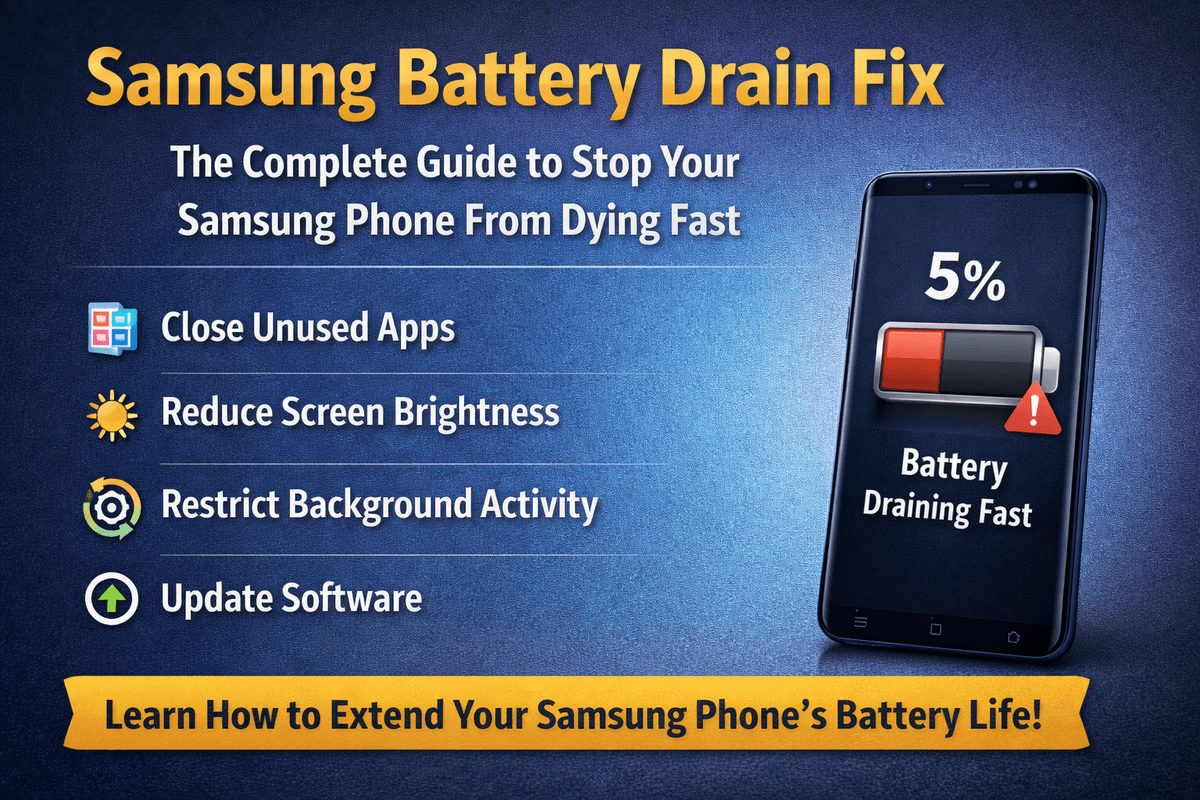
Table of Contents
- Why Is Your Samsung Battery Draining So Fast?
- Samsung Battery Drain Fix: Step by Step Solutions
- Fix 1: Check Battery Usage Statistics
- Fix 2: Enable Adaptive Battery
- Fix 3: Reduce Screen Brightness and Screen Timeout
- Fix 4: Manage the Always On Display
- Fix 5: Switch to a Lower Refresh Rate
- Fix 6: Restrict Background App Activity
- Fix 7: Disable Unnecessary Location Services
- Fix 8: Turn Off Features You Are Not Using
- Fix 9: Use Power Saving Mode Strategically
- Fix 10: Update Samsung Software and Apps
- Fix 11: Clear the System Cache Partition
- Fix 12: Perform a Network Settings Reset
- Fix 13: Check for Rogue Apps After an Update
- Fix 14: Factory Reset as a Last Resort
- Samsung Battery Draining Overnight: Specific Fixes
- How to Check Samsung Battery Health
- When to Replace Your Samsung Battery
- Pro Tips to Extend Samsung Battery Life Long Term
You bought your Samsung Galaxy phone for its stunning display, powerful processor, and all day battery life. But somewhere along the way, that battery life started slipping. Maybe your phone used to last a full day on a single charge and now barely makes it to the afternoon. Maybe it drains overnight even when you are not using it. Or perhaps a recent software update suddenly turned your reliable device into a battery hog.
If any of this sounds familiar, you are in the right place. Samsung battery drain is one of the most searched problems among Galaxy phone users, and the frustrating truth is that there is rarely a single cause. Instead, it is usually a combination of settings, apps, software issues, and hardware factors working against you at the same time.
This guide covers every reliable Samsung battery drain fix available in 2025, tested across Samsung Galaxy S, A, M, and Z series phones running One UI. By the time you finish reading, you will have a clear action plan to get your Samsung battery lasting as long as it possibly can.
Why Is Your Samsung Battery Draining So Fast?
Before jumping into fixes, it is worth understanding what is actually consuming your battery. Samsung Galaxy phones run on a customized version of Android called One UI, and while Samsung has made significant improvements to power management over the years, there are still several common culprits behind fast battery drain.
High Screen Brightness and Always On Display are two of the biggest contributors to battery drain on any Samsung device. The display is consistently the single largest power consumer on a smartphone, and Samsung AMOLED screens, while efficient, still consume a significant amount of energy when brightness is cranked up or when the Always On Display feature is left running around the clock.
Background App Activity is another major drain source. Many apps continue running processes, syncing data, fetching notifications, and using location services even when you are not actively using them. On some Samsung devices, certain apps are notorious for abusing background permissions.
Poor Network Signal forces your phone to work harder to maintain a connection. When you are in an area with weak 4G or 5G signal, your modem continuously boosts its power output trying to stay connected, which burns through battery at an accelerated rate.
Software Bugs and Pending Updates are often overlooked. A poorly optimized app or a buggy system update can cause a process to run in an endless loop in the background, draining your battery in a matter of hours. Samsung regularly releases patches to fix these issues, which is why keeping your software updated is so important.
Excessive Location Services and Sync Settings keep your phone constantly communicating with servers in the background. If multiple apps are tracking your location or syncing data every few minutes, the cumulative effect on battery life is substantial.
An Aging or Degraded Battery is the hardware reality that no software fix can overcome. After two to three years of regular use, lithium batteries naturally lose capacity. A battery that once held 4000 mAh may effectively deliver only 2800 mAh of usable power, resulting in noticeably shorter usage time.
Samsung Battery Drain Fix: Step by Step Solutions
Work through these solutions systematically. Some will produce an immediate improvement while others will show results over a few days as the phone learns your usage patterns.
Fix 1: Check Battery Usage Statistics
The first thing you should do is identify which app or process is consuming the most power. Open Settings and go to Battery and Device Care, then tap Battery. Here you will see a detailed breakdown of battery consumption by app over the past 24 hours or 7 days. If any single app is consuming an unusually high percentage compared to others and you were not actively using it, that app is the likely culprit. You can either restrict its background activity or uninstall it entirely.
Fix 2: Enable Adaptive Battery
Samsung's Adaptive Battery feature uses artificial intelligence to learn which apps you use regularly and which ones you rarely open. It then restricts background activity for infrequently used apps automatically. To enable it, go to Settings, tap Battery and Device Care, then Battery, and finally Adaptive Battery. Make sure the toggle is switched on. Give it three to five days to learn your habits before judging the results.
Fix 3: Reduce Screen Brightness and Screen Timeout
Go to Settings and tap Display. Lower the screen brightness to a comfortable level and enable Adaptive Brightness if you have not done so already. This feature automatically adjusts brightness based on your environment, preventing the screen from staying at maximum brightness indoors. Also reduce the Screen Timeout to 30 seconds or 1 minute so the display switches off quickly when you set the phone down.
Fix 4: Manage the Always On Display
The Always On Display is a convenient feature but it keeps your screen partially lit at all times. Go to Settings, then Lock Screen, then Always On Display. You can either turn it off completely or change the setting to Show for 10 seconds when you tap the screen or set it to activate only during specific hours. Both options will noticeably reduce battery consumption compared to keeping it on all day.
Fix 5: Switch to a Lower Refresh Rate
Samsung flagship phones like the Galaxy S24, S23, and the Z Fold series support refresh rates of 120Hz or higher. While a high refresh rate makes scrolling look buttery smooth, it also consumes significantly more power. Go to Settings, then Display, then Motion Smoothness, and switch from Adaptive or 120Hz to Standard (60Hz). If you are primarily doing everyday tasks like messaging and browsing, you will barely notice the difference visually but your battery will thank you.
Fix 6: Restrict Background App Activity
Even when Adaptive Battery is enabled, you may want to manually restrict specific apps that you know are problematic. Go to Settings, then Battery and Device Care, then Battery, and then Background Usage Limits. Here you can add apps to the Sleeping Apps or Deep Sleeping Apps categories, which significantly limits how often they can run in the background. Apps that sync constantly, like email clients, social media apps, and cloud storage services, are good candidates for this setting.
Fix 7: Disable Unnecessary Location Services
Many apps request location access and continue tracking your position in the background even when you are not using them. Go to Settings, then Location, and tap App Permissions. Review which apps have been granted Always or While Using access. For most apps, changing location permission to Only While Using or Ask Every Time is perfectly fine and prevents unnecessary background GPS activity.
Fix 8: Turn Off Features You Are Not Using
Samsung Galaxy phones come loaded with connectivity features, many of which stay active in the background and draw power even when you are not using them. If you are not actively transferring files, turn off Bluetooth. If you are not near a Wi Fi network, turn off Wi Fi scanning. Go to Settings, then Location, and disable Wi Fi Scanning and Bluetooth Scanning under Improve Accuracy if you do not need them. Similarly, turn off NFC if you do not use contactless payments regularly.
Fix 9: Use Power Saving Mode Strategically
Samsung's Power Saving Mode reduces background network usage, limits CPU speed, and restricts sync activity to extend battery life. You do not have to use it all day, but enabling it when your battery drops below 30 percent can significantly extend how long that remaining charge lasts. Go to Settings, then Battery and Device Care, then Battery, and toggle on Power Saving. For even more aggressive savings, you can enable a custom limit that activates Power Saving automatically at a certain battery percentage.
Fix 10: Update Samsung Software and Apps
Software bugs are a leading cause of sudden battery drain, and Samsung frequently releases One UI updates that include power management improvements. Go to Settings, then Software Update, and install any pending system updates. Also open the Galaxy Store and Google Play Store and update all your installed apps. Third party app developers regularly push updates that fix battery draining bugs in their apps.
Fix 11: Clear the System Cache Partition
Over time, cached system data can become corrupted and cause background processes to behave erratically, wasting battery power. Clearing the cache partition removes this temporary data without deleting any of your personal files or apps. To do this, turn off your Samsung phone. Then hold the Volume Up button and the Side button simultaneously until the Samsung logo appears. Use the Volume buttons to navigate to Wipe Cache Partition and press the Side button to confirm. After the process is complete, select Reboot System Now.
Fix 12: Perform a Network Settings Reset
A poorly configured or corrupted network configuration can cause your phone to constantly search for signal or re establish connections, draining the battery in the process. Go to Settings, then General Management, then Reset, and choose Reset Network Settings. This will reset your Wi Fi passwords, Bluetooth pairings, and mobile network settings. After the reset, reconnect to your networks and observe whether battery drain improves.
Fix 13: Check for Rogue Apps After an Update
If your Samsung battery drain started immediately after installing a new app or performing a system update, that is a strong clue about the cause. A newly installed app may have a bug or may be running excessive background processes. Try uninstalling recently added apps one by one and monitoring battery usage after each removal. If the drain began after a system update, check online forums and Samsung Community boards to see if other users are reporting the same issue. Samsung usually releases a patch within days of widespread reports.
Fix 14: Factory Reset as a Last Resort
If you have tried everything else and your battery is still draining abnormally fast, a factory reset is the nuclear option that eliminates any software related cause. Before doing this, back up all your data through Samsung Cloud or Smart Switch. Then go to Settings, General Management, Reset, and Factory Data Reset. After the reset and setup, use the phone without restoring your backup for a day or two to test battery life. If it improves dramatically, the problem was a software or app conflict that the reset resolved.
Samsung Battery Draining Overnight: Specific Fixes
Many Samsung users notice that their phone loses 10 to 20 percent of battery overnight even without being used. This specific issue is usually caused by background apps maintaining network connections, push notifications constantly waking the phone, or the modem searching for signal in areas of weak coverage.
To address overnight drain specifically, enable Airplane Mode before sleeping if you do not need calls or messages overnight. Alternatively, turn on Do Not Disturb with complete silence and disable all background sync. You can also go to Settings, then Device Care, then scroll down to find Auto Optimization and enable it to run at a scheduled time each night, which closes background tasks automatically.
If your phone supports it, you can also use the Bedtime Mode feature which not only manages notifications but also reduces screen warmth and limits background processing during sleep hours.
How to Check Samsung Battery Health
Samsung does not display battery health as a simple percentage in standard settings the way Apple does on iPhones. However, you can access it through two methods.
The first method is the Samsung secret service code. Open your Phone app and dial the code ##4636## (on some models it is ##0228##). This opens a hidden testing menu where you can view battery diagnostics including battery health status, temperature, and voltage. A healthy battery should read Good. If it reads Poor or Bad, replacement is recommended.
The second method is through Samsung Members app. Open the app, go to Get Help, then Interactive Checks, and tap Battery. This runs a diagnostic and reports whether your battery is functioning within normal parameters.
When to Replace Your Samsung Battery
No software fix can compensate for a battery that has genuinely reached the end of its useful life. Here are the key signs that tell you it is time for a replacement rather than another round of settings adjustments.
Your phone barely lasts three to four hours of screen on time despite minimal usage. The battery percentage drops suddenly by large amounts, for example from 50 percent to 10 percent in minutes. The phone feels unusually warm even during light tasks. The back of your Samsung phone is visibly bulging, which indicates a swollen battery and requires immediate attention as it is a potential safety hazard. The phone shuts down unexpectedly at percentages above 15 to 20 percent despite calibration attempts.
Samsung batteries can be replaced at official Samsung Service Centers, Samsung authorized repair shops, or through Samsung's mail in repair service. Using official Samsung parts ensures the replacement battery meets the original specifications and maintains your phone's water resistance rating.
Pro Tips to Extend Samsung Battery Life Long Term
Beyond fixing immediate drain problems, developing a few smart habits will help your Samsung battery maintain its health and accuracy for years.
Avoid charging your phone to 100 percent every single time if you mostly keep it plugged in. Samsung's Protect Battery feature limits charging to 85 percent to reduce long term degradation. Enable it by going to Settings, Battery and Device Care, Battery, and turning on Protect Battery. Use the original Samsung charger or a certified fast charger rather than cheap third party alternatives that may not regulate voltage properly. Avoid leaving your phone in direct sunlight or in a hot car as heat is the single greatest enemy of lithium battery longevity. Try to keep the battery between 20 and 80 percent as much as practically possible for the longest lifespan.
Try Our Battery Health Checklist
Run a quick health check to spot early battery problems.
Battery Health Checklist
Answer 8 quick questions to diagnose your battery
Does your battery drain from 100% to 0% in less than 6 hours with normal use?
Frequently Asked Questions

Written by
BatteryGuides Editorial Team
Our team of battery experts researches and tests every guide to ensure accuracy. We're committed to helping you get the most out of your phone, laptop, and solar batteries.