How to Check Battery Health on Android/iPhone
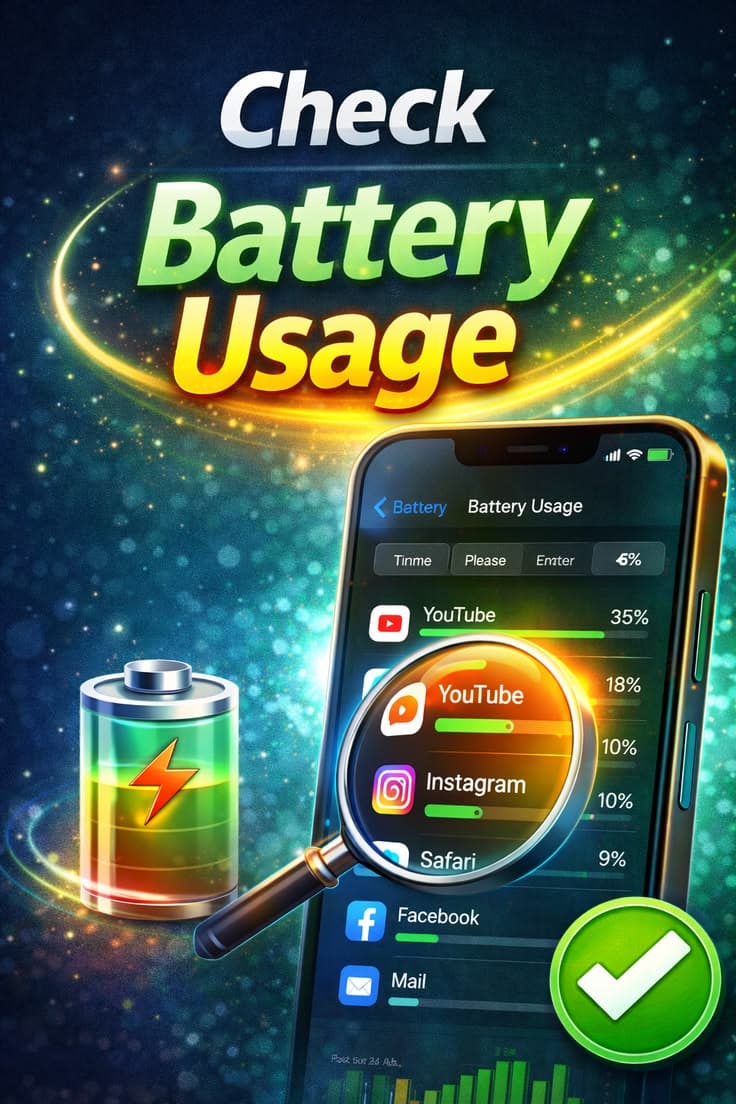
Table of Contents
- 1. Check Battery Health on iPhone (Built-in Feature)
- 2. Understand iPhone Battery Health Percentage
- 3. Check Battery Health on Android (Built-in Options)
- 4. Use Secret Dial Codes (Android)
- 5. Use Third-Party Apps (Android)
- 6. Signs of Poor Battery Health
- 7. When to Replace Your Battery
- 8. Tips to Maintain Battery Health
1. Check Battery Health on iPhone (Built-in Feature)
Apple provides a built-in battery health feature that allows users to easily check their battery condition without installing any extra apps. It gives a clear percentage showing how much capacity your battery has left compared to a new one.
Go to Settings
Open Battery section
Tap on Battery Health & Charging
Check Maximum Capacity percentage
View Peak Performance Capability status
2. Understand iPhone Battery Health Percentage
The battery health percentage on iPhone shows how much charge your battery can hold compared to its original capacity. A lower percentage means reduced battery performance and shorter usage time.
100% means battery is in excellent condition
80–90% indicates normal wear over time
Below 80% suggests battery replacement may be needed
Performance issues may appear at lower levels
3. Check Battery Health on Android (Built-in Options)
Most Android phones do not show detailed battery health directly like iPhones, but some brands include basic battery information in settings. The availability depends on the manufacturer.
Go to Settings
Open Battery or Device Care
Look for Battery Usage or Battery Status
Some phones show battery condition or health status
4. Use Secret Dial Codes (Android)
Some Android devices allow you to access hidden diagnostic menus using special dial codes. These menus can show battery status and basic health information.
Open Phone Dialer
Dial ##4636##
Select Battery Information
View battery status and details

5. Use Third-Party Apps (Android)
If your phone doesn’t provide built-in battery health details, you can use trusted apps to monitor battery condition. These apps estimate battery health based on usage patterns and charging cycles.
Download apps like AccuBattery or similar.
Monitor battery capacity and wear over time.
Check charging and discharging patterns.
Get insights on battery performance.
6. Signs of Poor Battery Health
Even without checking settings or apps, your phone may show clear signs when the battery health is declining. Recognizing these signs can help you take action early.
Battery drains very quickly.
Phone shuts down unexpectedly.
Device heats up during normal use.
Charging takes longer than usual.
7. When to Replace Your Battery
Battery replacement becomes necessary when performance drops significantly and affects daily usage. Replacing the battery can restore your phone’s performance and usability.
Battery health drops below 80%.
Frequent shutdowns or lag.
Unable to hold charge for long.
Charging issues become common.

8. Tips to Maintain Battery Health
Maintaining good battery habits can slow down battery wear and keep your phone running smoothly for longer. Simple changes in charging and usage can make a big difference.
Avoid frequent full discharges.
Keep battery between 20–80%.
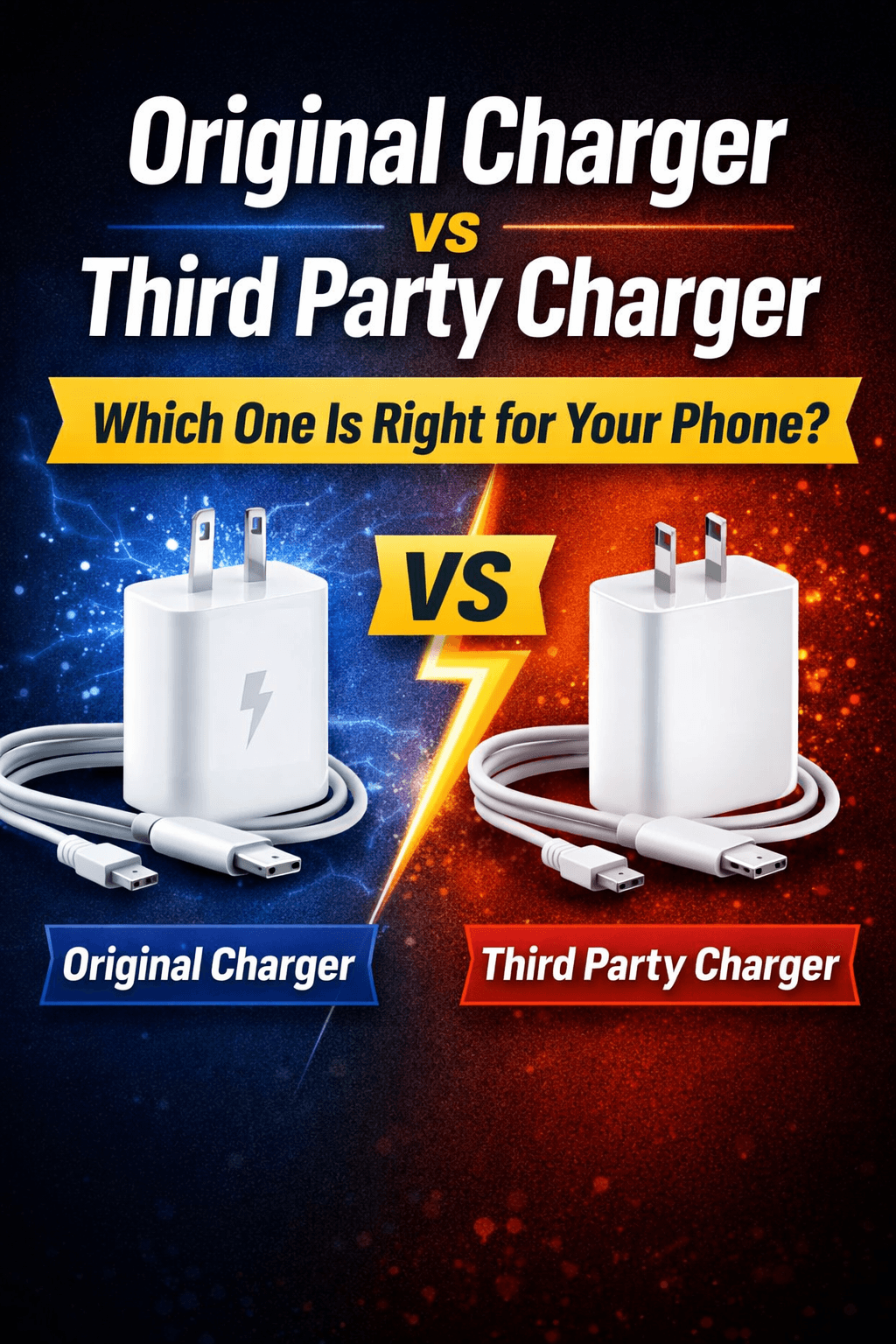
Use original or certified chargers.
Avoid excessive heat during charging.
Try Our Phone Diagnostic Flow
Walk through a step-by-step flow to diagnose charging issues.
Phone Diagnostic Flow
Answer questions to diagnose your charging issue
What's happening with your phone?
Frequently Asked Questions

Written by
BatteryGuides Editorial Team
Our team of battery experts researches and tests every guide to ensure accuracy. We're committed to helping you get the most out of your phone, laptop, and solar batteries.