How does background apps affect you battery life?
Table of Contents
- 📌 What Are Background Apps?
- ⚠️ The Worst Battery-Draining Apps
- 🔹 How Background Apps Drain Your Battery
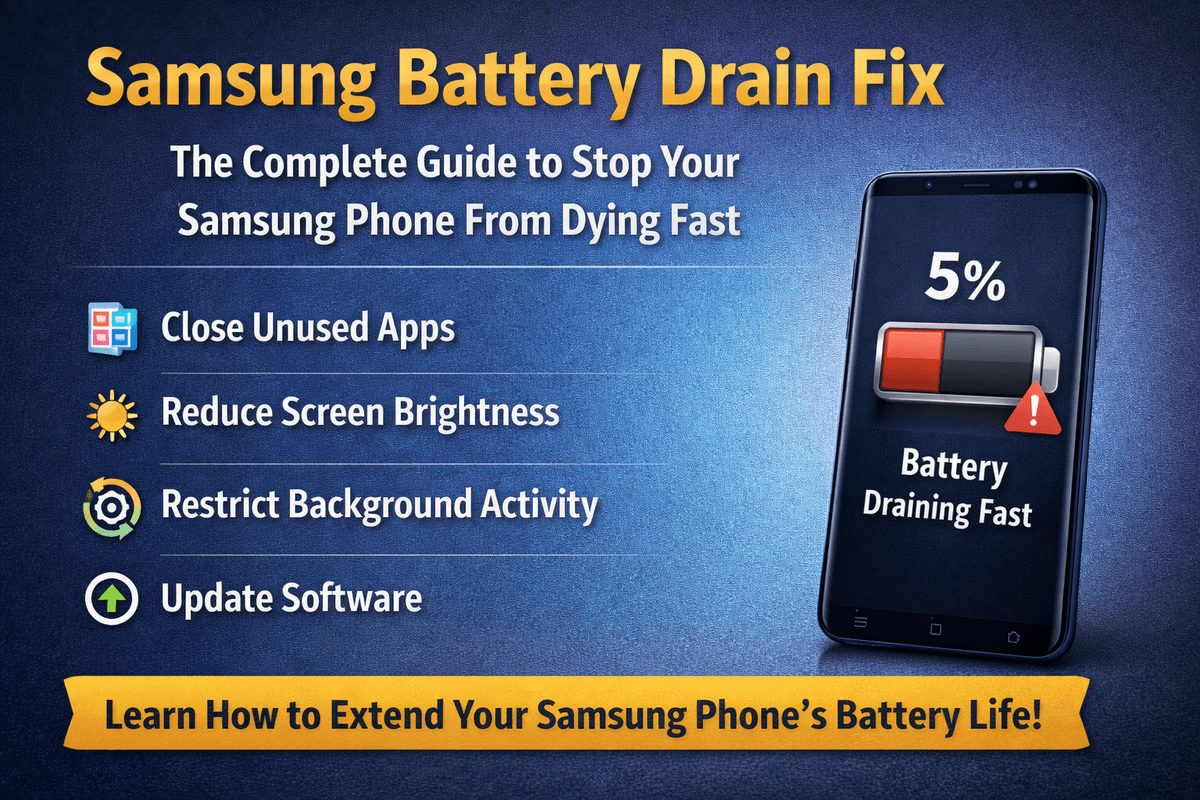
- ✅ How to Fix Background App Battery Drain
- 1. Check Your Battery Usage Stats
- 2. Turn Off Background App Refresh
- 3. Limit Location Access
- 4. Cut Down Push Notifications
- 5. Enable Battery Saver Mode
- 6. Keep Apps and OS Updated
- 💡 Quick Wins to Maximize Battery Life
- 🔹 Issues
🔋 How Background Apps Are Silently Draining Your Phone’s Battery
Ever charged your phone overnight, only to find it nearly empty by mid-morning? Before blaming your battery’s age, check what’s running behind the scenes — background apps are one of the biggest and most overlooked causes of fast battery drain on both iPhone and Android.
📌 What Are Background Apps?
Background apps are apps that continue running even after you close them or switch to something else. They might:
Refresh feeds on social media
Sync data to the cloud
Track your location
Push notifications
While some of this is necessary — like your email checking for new messages or maps tracking your location — many apps run unnecessarily, quietly draining your battery and consuming mobile data.
⚠️ The Worst Battery-Draining Apps
These apps consistently use the most power due to constant background activity:
Facebook
Instagram
TikTok
Snapchat
Google Maps
YouTube
Twitter / X
Spotify
🔹 How Background Apps Drain Your Battery
Constant Data Fetching
Social media and news apps frequently poll servers for new content.
Every refresh activates the processor and network antennas, which consumes battery power.
Location Services Running in the Background
GPS is a major battery drain.
Apps like rideshare, shopping, weather, and social platforms constantly request location data, even when you’re not using them.
Push Notifications & Background Sync
Every notification wakes your phone, connects to servers, and processes data.
Multiply this by dozens of apps, and the drain adds up quickly.
Poorly Optimized or Outdated Apps
Older apps or poorly coded apps can run unnecessary background processes.
Updating apps regularly helps reduce hidden battery consumption.

✅ How to Fix Background App Battery Drain
Here’s a step-by-step guide to improve your battery life:
1. Check Your Battery Usage Stats
iPhone: Settings → Battery → Scroll down for per-app breakdown
Android: Settings → Battery → Battery Usage
2. Turn Off Background App Refresh
Stops apps from refreshing unnecessarily.
iPhone: Settings → General → Background App Refresh → Off for non-essential apps
Android: Settings → Apps → [App] → Mobile Data & Wi-Fi → Disable Background Data
3. Limit Location Access
Change apps from “Always” to “While Using” or “Never” if not needed.
iPhone: Settings → Privacy & Security → Location Services
Android: Settings → Location → App Permissions
4. Cut Down Push Notifications
Disable notifications for apps that aren’t essential.
iPhone: Settings → Notifications → Per-app control
Android: Settings → Apps & Notifications → Notifications
5. Enable Battery Saver Mode
Restricts background activity across the system.
iPhone: Settings → Battery → Low Power Mode
Android: Settings → Battery → Battery Saver
6. Keep Apps and OS Updated
Updates include efficiency fixes for battery and background processing.
Old apps running buggy code can drain battery faster.

💡 Quick Wins to Maximize Battery Life
Audit weekly: Check battery stats regularly and restrict unnecessary apps.
Delete unused apps: Apps you haven’t opened in months may still run in the background.
Use Wi-Fi instead of mobile data: Background syncing over Wi-Fi consumes less power.
Restart your phone weekly: Clears stuck processes that even the OS sometimes misses.
🔹 Issues
Background apps are a slow, invisible drain, but they’re also easy to fix.
Audit battery usage stats
Restrict unnecessary background refresh and location access
Limit push notifications
Most people see noticeable improvements in battery life within a day.
If your battery still drains quickly after all this, it may be time to replace the battery, not the phone.
For more detailed battery guides and tips, visit bestbatteryguide.com
Try Our Battery Cycle Life Calculator
Estimate remaining battery cycle life and replacement timing.
Battery Cycle Life Calculator
Estimate remaining cycles and replacement timeline
Device
Usage & Health
Frequently Asked Questions

Written by
BatteryGuides Editorial Team
Our team of battery experts researches and tests every guide to ensure accuracy. We're committed to helping you get the most out of your phone, laptop, and solar batteries.