Why Is My Laptop Battery Draining So Fast?
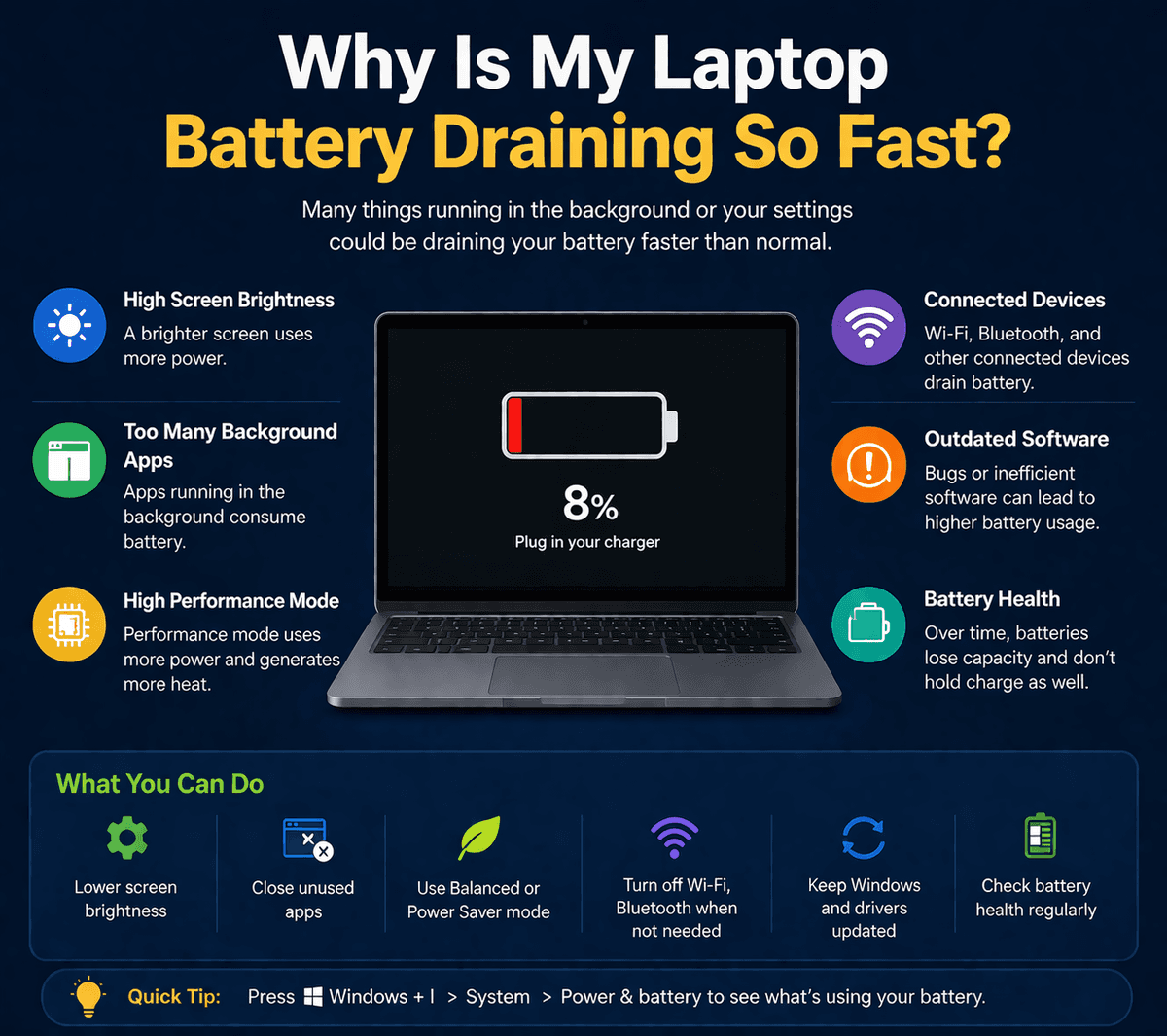
Table of Contents
- Screen Brightness Is Silently Killing Your Battery
- Why it happens
- Background Apps and Processes Eating Power
- Common culprits to watch for
- Your Battery May Simply Be Aging
- When to replace your battery
- Wrong Power Settings and Plans
- The hidden settings you're probably missing
- Wi-Fi, Bluetooth, and Connectivity Drain
- Location services and GPS
- Overheating and Poor Ventilation
- How to check if heat is the problem
- USB Devices and Peripherals Drawing Power
- The charging-while-draining paradox
- Outdated Drivers and OS Issues
- BIOS and firmware matter too
- Your Web Browser Is a Battery Vampire
- Browser extensions: convenient but costly
- Gaming and GPU-Intensive Tasks
- Screen refresh rate's hidden cost
- Keyboard Backlight and RGB Lighting
- Bad Charging Habits Degrading Battery Health
- Manufacturer battery care modes
You charge your laptop overnight, sit down to work in the morning full of optimism — and two hours later, the dreaded low-battery warning pops up. Sound familiar? You're not alone. Rapid laptop battery drain is one of the most common, most frustrating tech complaints in the world.
The good news: in most cases, your laptop battery is not "broken." It's being quietly drained by a combination of software settings, hardware behaviors, usage habits, and sometimes genuine battery aging — all of which can be addressed once you know what to look for.
This comprehensive guide covers every single reason your laptop battery could be draining faster than it should, along with clear, actionable fixes for each. Whether you're on a Windows 11 machine, a MacBook, or a Chromebook — these insights apply to you. Let's start at the beginning.
Reason 01
Screen Brightness Is Silently Killing Your Battery
The display is the single largest power consumer in any laptop. Studies consistently show that the screen can account for 30% to 50% of total battery consumption under normal usage. When you crank brightness to 100%, you are essentially running a small lamp in your device — continuously.
Why it happens
Modern laptop screens use LED backlights that scale power use directly with brightness. At max brightness, the display panel can draw 8–15 watts all by itself. At 50% brightness, that same panel might draw 3–5 watts. Over a 4-hour session, that's the difference between needing a recharge and still having battery to spare.
Auto-brightness sensors are supposed to help — but many users disable them or their laptop doesn't have one at all, leaving the screen blazing indoors when it doesn't need to be.
How to Fix It
Keep display brightness at 50–70% when indoors under normal lighting.
Enable auto-brightness if your system supports it (Settings → Display → Adaptive Brightness on Windows; System Preferences → Display → Auto on Mac).
Set a short screen sleep timeout (2–3 minutes when idle).
Use dark mode — on OLED screens, black pixels consume almost no power at all.
Reason 02
Background Apps and Processes Eating Power
Every running application — even those "minimized" or sitting silently in your system tray — consumes CPU cycles, RAM, and ultimately battery. When you have 40 browser tabs open, three cloud sync tools running, a music app, a PDF reader, a video call app on standby, and an antivirus scan running in the background, you've turned your laptop into a mini data center.
On Windows, you can press Ctrl + Shift + Esc to open Task Manager and sort processes by CPU or Power Usage. On macOS, open Activity Monitor (Applications → Utilities) and sort by "Energy Impact." You may be shocked at what you find.
Common culprits to watch for
Cloud storage apps like OneDrive, Google Drive, and Dropbox sync files in real time — this is convenient but it means your disk and network adapter are constantly active. Antivirus software running full scans. Email clients checking for new mail every 30 seconds. Software updaters running silently.
How to Fix It
Audit startup programs and disable any you don't use daily (Task Manager → Startup on Windows; System Settings → General → Login Items on Mac).
Pause cloud sync while on battery power.
Schedule antivirus scans for when the laptop is plugged in.
Close applications you aren't actively using — not just minimizing, but actually closing them.
Reason 03
Your Battery May Simply Be Aging
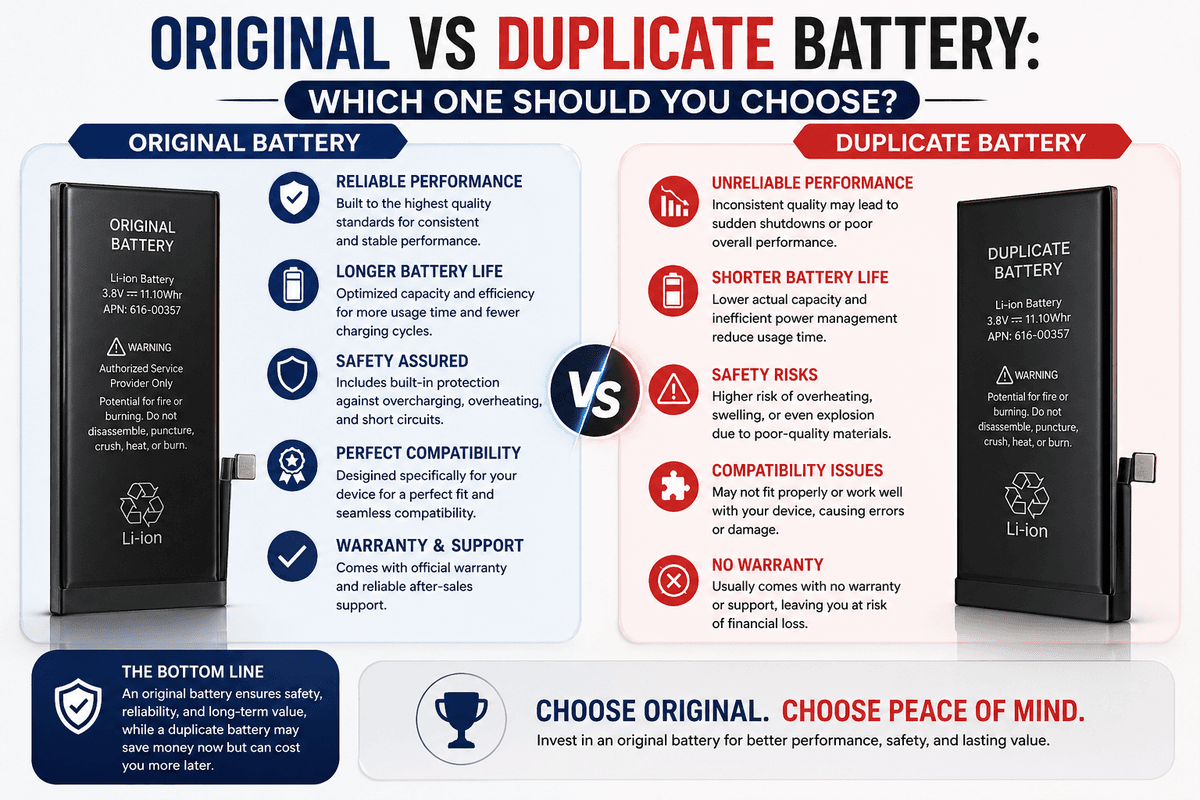
Lithium-ion batteries — the type found in virtually every modern laptop — have a finite lifespan. They're typically rated for 300 to 1,000 full charge cycles before they begin to noticeably lose capacity. After that, the battery's maximum charge falls below its original rating. A battery that once held 72Wh of charge might now only hold 50Wh — meaning you get proportionally less runtime from a full charge, even if nothing else has changed.
Typical battery capacity over time
A 2–3 year old battery often holds only 65–80% of its original capacity.
To check battery health on Windows 11/10: open Command Prompt as administrator and run powercfg /batteryreport. This generates an HTML report showing your battery's design capacity vs. current full charge capacity. On macOS: hold Option, click the Apple menu, go to System Information → Hardware → Power, and look at "Cycle Count" and "Condition."
Key insight: If your battery health is below 80% of its original capacity, replacement is often the most cost-effective solution — especially on laptops still under warranty or with affordable battery replacements available.
When to replace your battery
Most manufacturers consider a battery to have "normal" degradation when it falls below 80% of design capacity. Signs it's time to replace: less than 3 hours of light use from full charge, the laptop shutting off unexpectedly before battery shows 0%, physical battery bulging (which is also a safety hazard — stop using the laptop immediately if you notice this).
Reason 04
Wrong Power Settings and Plans
Both Windows and macOS include power management profiles — or "power plans" — that govern how aggressively the system conserves energy. Many users leave their laptops on "High Performance" mode indefinitely, even when doing light tasks like reading emails or writing documents.
In High Performance mode, your CPU runs at maximum clock speed, your GPU is kept ready to render at peak performance, and your screen never dims. This is excellent for gaming or video editing. For browsing the web, it's enormous overkill that drains your battery at an alarming rate.
The hidden settings you're probably missing
On Windows, search for "Power & Sleep settings" and look for "Additional power settings" to access the full battery plan options. The "Balanced" plan is usually best for everyday use. The "Power Saver" plan limits performance but is excellent for long trips. On Windows 11, look for the Battery Saver toggle in Quick Settings (the notification panel).
On macOS, go to System Settings → Battery → Options and enable "Enable Power Nap" only when plugged in, and adjust the "Low Power Mode" setting.
How to Fix It
Switch to "Balanced" or "Power Saver" mode when unplugged.
Set the display to dim after 1–2 minutes of inactivity.
Set sleep mode to activate after 5–10 minutes of idle time.
Disable "fast startup" in Windows if it's causing power management glitches.
Reason 05
Wi-Fi, Bluetooth, and Connectivity Drain
Wireless radios — Wi-Fi, Bluetooth, and cellular adapters if your laptop has one — are continuously transmitting and receiving signals. Even when you're not actively using them, these radios periodically scan for networks and devices, consuming small but real amounts of power throughout the day.
The problem intensifies when you're in an area with a weak Wi-Fi signal. Your laptop's Wi-Fi adapter has to work significantly harder to maintain the connection — increasing power consumption substantially. Similarly, if Bluetooth is on and your laptop is searching for devices to pair with, it's burning power for no productive reason.
Location services and GPS
Many apps request constant access to your location — weather apps, maps, time zone tools, and others. On Windows 11, go to Settings → Privacy & Security → Location and review which apps have access. Disable location for apps that don't genuinely need it running in the background.
How to Fix It
Turn off Bluetooth when not actively using a wireless mouse, headphones, or other device.
Move closer to your Wi-Fi router to reduce signal strain.
Use a wired Ethernet connection when at a desk — faster and uses less power than Wi-Fi.
Disable location services for non-essential apps.
Reason 06
Overheating and Poor Ventilation
Heat is the enemy of laptop batteries. When your laptop overheats, a cascade of problems begins: the battery discharges faster under thermal stress, the CPU throttles performance (meaning tasks take longer and use more total energy), the fans spin at maximum speed (consuming extra power), and long-term battery health degrades at an accelerated rate.
Common overheating causes include dusty air vents blocking cooling airflow, using a laptop on soft surfaces like beds or pillows that cover the bottom ventilation slots, running in a hot environment, or simply an aging thermal paste inside the machine that no longer transfers heat effectively from the CPU to the heatsink.
How to check if heat is the problem
Download a free tool like HWiNFO (Windows) or iStatMenus (macOS) to monitor CPU and battery temperatures in real time. CPU temperatures above 90°C under moderate workloads indicate poor cooling. Battery temperatures above 45°C are a sign of heat stress.
How to Fix It
Always use your laptop on hard, flat surfaces that allow air to circulate underneath.
Use a laptop cooling stand or pad with additional fans for heavy workloads.
Clean the vents with compressed air every 6–12 months.
For older machines (3+ years), consider professional thermal paste replacement.
Keep the laptop away from direct sunlight and warm environments.
Reason 07
USB Devices and Peripherals Drawing Power
Every device plugged into your laptop's USB ports draws power from — you guessed it — the battery. External hard drives, USB hubs, phone chargers, external webcams, gaming accessories with RGB lighting, and even USB-powered fans can collectively pull several watts at a time.
USB-C hubs (often called "docking stations") are particularly power-hungry, especially when they're powering multiple displays and devices simultaneously. A single USB-C hub driving two 4K monitors, an external SSD, and Ethernet can draw 15–30 watts — that's enormous when your laptop battery might only offer 65Wh total.
The charging-while-draining paradox
If you charge your phone from your laptop while the laptop is on battery, your laptop is literally powering your phone at the expense of its own battery. On Windows, you can disable USB power delivery when unplugged via Device Manager → Universal Serial Bus Controllers → USB Root Hub → Power Management → "Allow the computer to turn off this device to save power."
Reason 08
Outdated Drivers and OS Issues
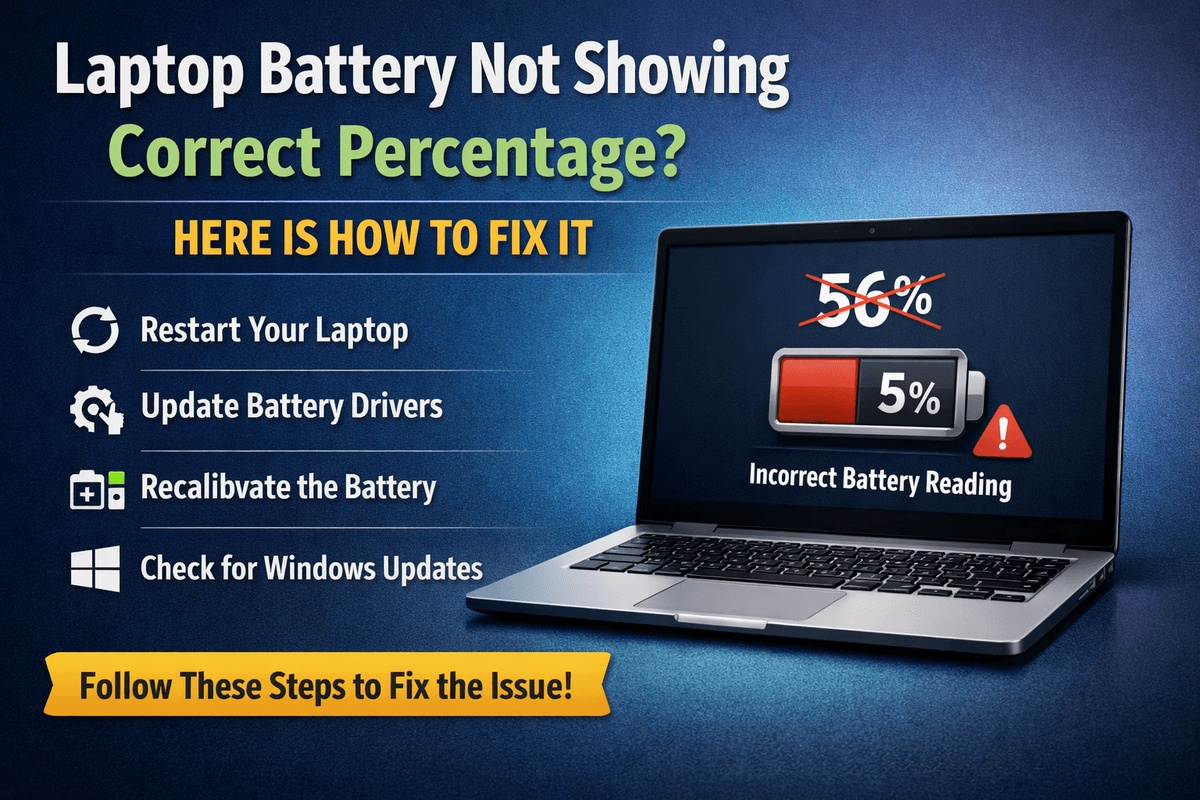
Operating systems and hardware drivers receive regular updates that often include power management improvements. Running outdated drivers — especially GPU drivers, chipset drivers, and battery management firmware — can result in inefficient power usage, as the system fails to take advantage of modern power-saving states.
In some cases, a buggy Windows Update itself can cause excessive battery drain by keeping a background process running continuously. This is more common than many people realize — if your battery life suddenly got dramatically worse after an update, this may be the cause.
BIOS and firmware matter too
Many laptop manufacturers release BIOS and firmware updates that specifically improve battery efficiency. Check your manufacturer's support website (Dell, HP, Lenovo, ASUS, etc.) for your model's latest BIOS version — especially if your device is more than a year old. These updates are free and often include meaningful battery life improvements.
How to Fix It
Keep Windows/macOS fully updated via Settings → Windows Update or System Settings → Software Update.
Update GPU drivers via GeForce Experience (Nvidia), AMD Software, or Intel Arc Control.
Check manufacturer site for BIOS/firmware updates for your specific model.
If drain started after a Windows update, consider rolling it back via Settings → Update & Security → View Update History → Uninstall Updates.
Reason 09
Your Web Browser Is a Battery Vampire
Modern web browsers are extraordinary pieces of software — and extraordinarily hungry for power. Chrome, in particular, has a long-standing reputation for aggressive RAM and CPU usage. Each browser tab is effectively a small program. Auto-playing video ads, JavaScript-heavy sites, and browser extensions all contribute to elevated CPU usage that translates directly to faster battery drain.
Research has shown that on the same hardware, Microsoft Edge can outlast Google Chrome on battery by 10–20% thanks to its built-in power-saving features and tighter integration with Windows power management. Firefox and Safari (on macOS) also offer competitive battery efficiency.
Browser extensions: convenient but costly
Every extension installed in your browser runs code continuously in the background. Password managers, ad blockers, VPN extensions, productivity tools — each adds CPU overhead. You don't have to remove them all, but auditing your extension list and removing unused ones can meaningfully improve battery life.
How to Fix It
Enable Edge's "Efficiency Mode" (Settings → System and Performance → Efficiency Mode) when on battery.
Install an ad-blocker like uBlock Origin — blocking ads reduces page load demands and removes autoplay video that burns CPU.
Close tabs you're not actively reading. Use a tab manager extension to "suspend" inactive tabs.
Avoid video streaming in a browser window — dedicated apps like the Netflix or YouTube app are usually more efficient.
Reason 10
Gaming and GPU-Intensive Tasks
If you use your laptop for gaming, video editing, 3D rendering, or any other GPU-intensive task while unplugged, expect your battery to drain extremely rapidly — sometimes in under an hour on even large-capacity batteries. The discrete GPU in a gaming laptop can consume 60–120 watts on its own at full load. A typical laptop battery holds only 60–90Wh. The math is not flattering.
Many gaming laptops now include "hybrid graphics" or "MUX switch" technology that allows you to disable the discrete GPU and use the far more efficient integrated graphics (Intel Iris Xe, AMD Radeon integrated) for light tasks. Using integrated graphics for web browsing and documents, then switching to dedicated GPU only for gaming, can triple your battery life.
Screen refresh rate's hidden cost
High-refresh-rate displays (144Hz, 165Hz, 240Hz) look fantastic in games but draw significantly more power than standard 60Hz panels. Many gaming laptops allow you to switch between refresh rates. Dropping to 60Hz for non-gaming use conserves meaningful battery. On Windows 11: Settings → Display → Advanced Display → Choose a Refresh Rate.
Reason 11
Keyboard Backlight and RGB Lighting
Keyboard backlighting is a beloved feature — it makes typing in dim environments easy and (let's be honest) it looks cool. However, LED keyboard lighting draws real power, and RGB lighting with multiple color zones draws even more. On gaming laptops with full RGB setups, the keyboard lighting alone can consume 2–5 watts, which over a 4-hour session represents 8–20Wh — a noticeable chunk of your total battery.
Most laptops allow you to reduce keyboard backlight brightness or disable it entirely via keyboard shortcuts (often Fn + a backlight key). On Windows, you can also set it to turn off automatically after a few seconds of inactivity. This single habit change can add 20–45 minutes to your battery life.
Reason 12
Bad Charging Habits Degrading Battery Health
How you charge your laptop has a significant long-term impact on how long the battery holds its charge. Lithium-ion batteries don't "like" being kept at 100% all the time — the chemistry inside experiences stress at very high and very low states of charge. Leaving your laptop plugged in and fully charged 24/7 slowly reduces the battery's maximum capacity over time.
Similarly, allowing the battery to fully drain to 0% repeatedly accelerates wear. The sweet spot for lithium-ion battery health is keeping the charge between 20% and 80% as much as practical. Many modern laptops now include battery health optimization features that limit maximum charge to 80% when the laptop is plugged in most of the time.
Manufacturer battery care modes
Look for "Battery Care," "Battery Health Manager," or "Conservation Mode" in your laptop's dedicated control software. Lenovo has Lenovo Vantage with "Battery Conservation Mode." ASUS has "MyASUS" with battery health charging options. Dell has Dell Power Manager. HP has HP Battery Manager. These tools limit max charge to extend long-term battery lifespan significantly.
How to Fix It
Enable your laptop's battery care or conservation mode if available.
Avoid leaving the laptop plugged in at 100% for days at a time.
Try to charge between 20%–80% rather than 0%–100%.
Avoid charging overnight when the battery will sit at 100% for hours.
Charge at room temperature — charging in hot or cold environments stresses the battery.
Try Our Battery Cycle Life Calculator
Estimate remaining battery cycle life and replacement timing.
Battery Cycle Life Calculator
Estimate remaining cycles and replacement timeline
Device
Usage & Health

Written by
BatteryGuides Editorial Team
Our team of battery experts researches and tests every guide to ensure accuracy. We're committed to helping you get the most out of your phone, laptop, and solar batteries.