Symptoms of a Bad Laptop Battery: Everything You Need to Know Before It's Too Late
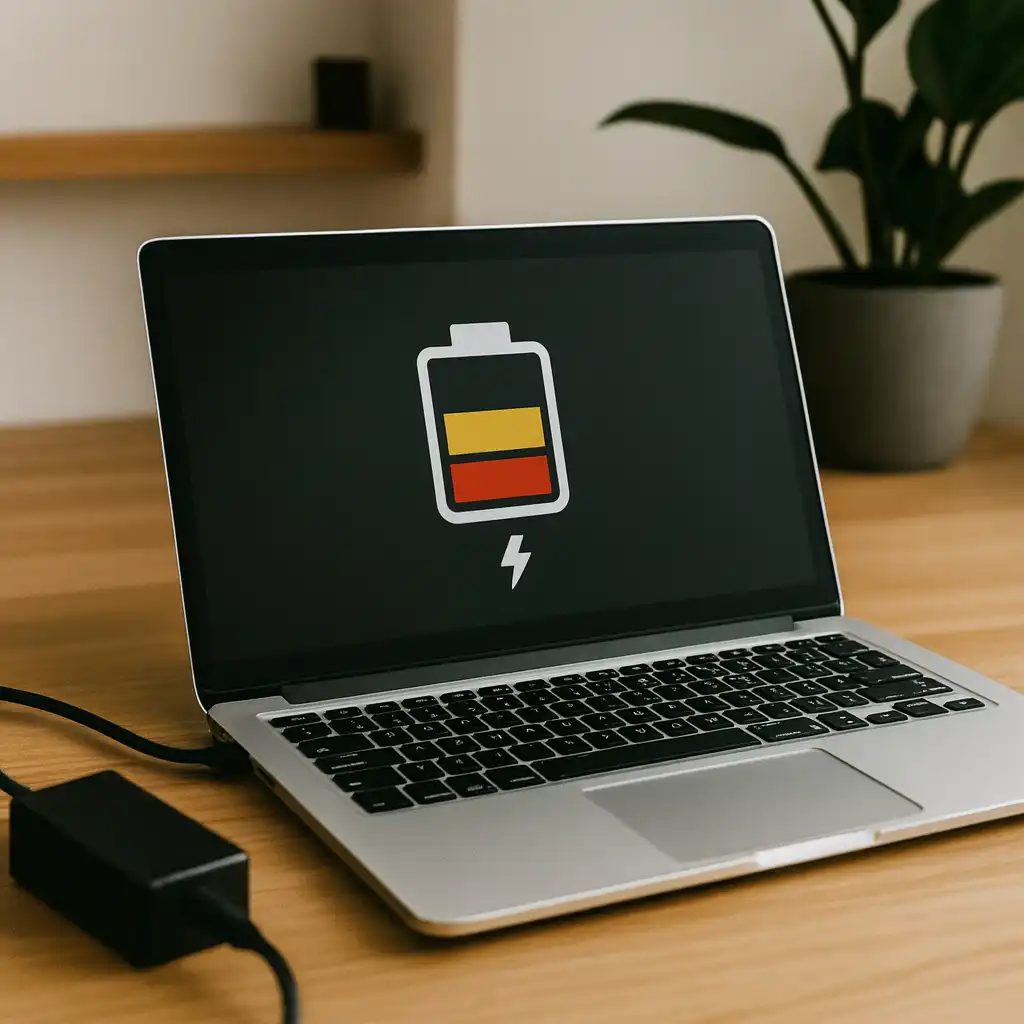
If you have ever been sitting in the middle of an important work call, a college assignment, or a late-night binge-watch session and your laptop just shut down out of nowhere, you already know the frustration. The culprit, more often than not, is a battery that has quietly been giving up on you. The tricky part is that most people do not even realize their laptop battery is failing until it is completely dead. Learning to spot the symptoms of a bad laptop battery early can save you a lot of stress, money, and data loss.
In this guide, we are going to walk through every major warning sign your laptop is throwing your way, explain why each one happens, and help you figure out whether it is time to replace your battery or look at something else entirely.
Why Laptop Batteries Go Bad in the First Place
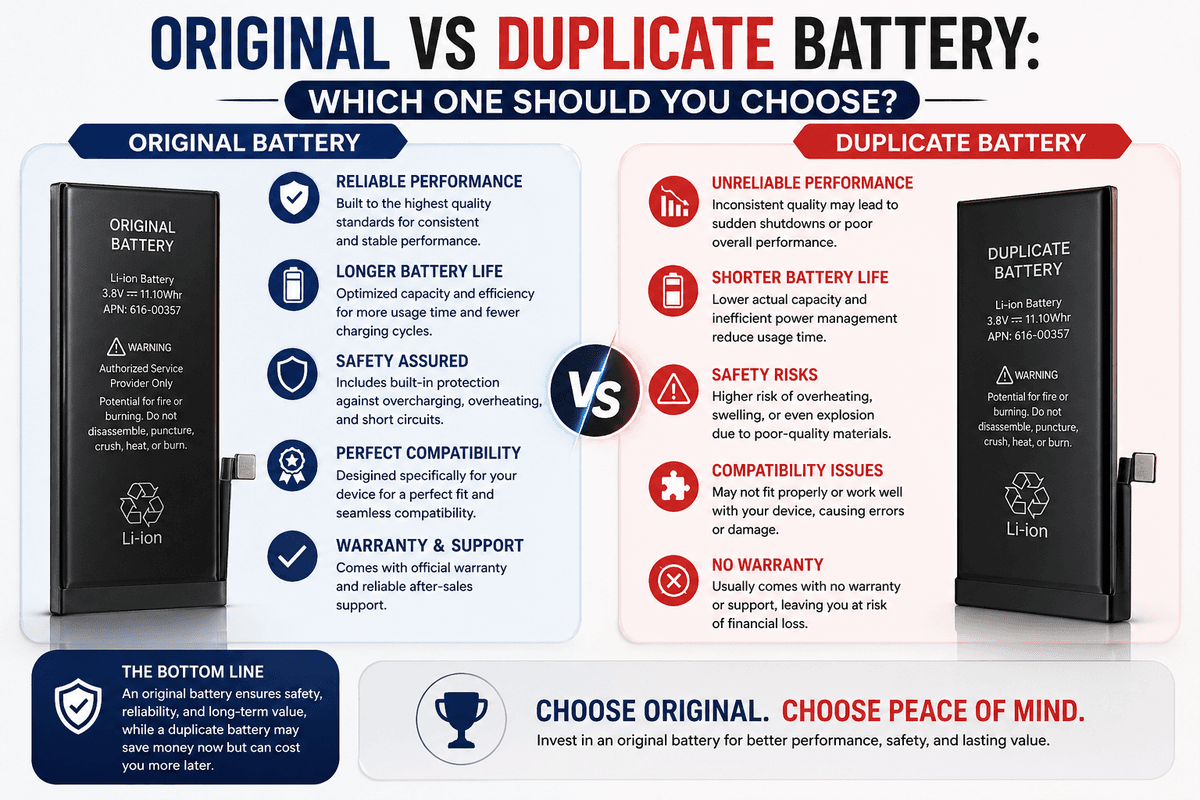
Before jumping into the symptoms, it helps to understand why laptop batteries degrade over time. Almost all modern laptops use lithium-ion or lithium-polymer batteries. These batteries work through a chemical process, and like all chemical processes, they have a limited lifespan. Every time you charge and discharge a battery, it goes through what is called a charge cycle. Most laptop batteries are rated for somewhere between 300 and 1,000 charge cycles before they start to noticeably lose capacity.
That means if you charge your laptop once a day, you could start seeing battery issues within a year or two, especially if you are someone who lets it drain completely before plugging back in. Heat is another major enemy. Keeping your laptop on a soft surface that blocks the vents, leaving it in a hot car, or consistently running intensive programs causes the battery to degrade faster than it should.
Understanding this background makes it a lot easier to recognize the signs when they start showing up.
---
## Symptom 1: Your Laptop Dies Much Faster Than It Used To
This is usually the first and most obvious sign that something is wrong with your battery. You remember a time when your laptop lasted six or seven hours on a single charge, and now you are lucky to get two. That kind of dramatic drop in battery life is a clear indicator that your battery's capacity has deteriorated significantly.
Here is what happens under the hood. A fresh battery can hold, say, 60 watt-hours of energy. As the battery ages and goes through hundreds of charge cycles, the maximum charge it can actually hold drops. So even when your laptop says it is at 100 percent, it might only be holding 35 or 40 watt-hours of actual usable energy. The result is that your laptop runs out of juice far sooner than expected.
This symptom tends to creep up gradually, which is why many people do not notice it until things get really bad. If you are suddenly reaching for your charger every two hours when you used to coast through the whole day, your battery is trying to tell you something.
Symptom 2: The Battery Percentage Drops Suddenly and Unexpectedly
Imagine this. Your laptop shows 65 percent battery. You close it, walk to another room, open it back up, and it is already at 40 percent. Or worse, the percentage is falling rapidly right in front of your eyes without any particularly heavy usage going on.
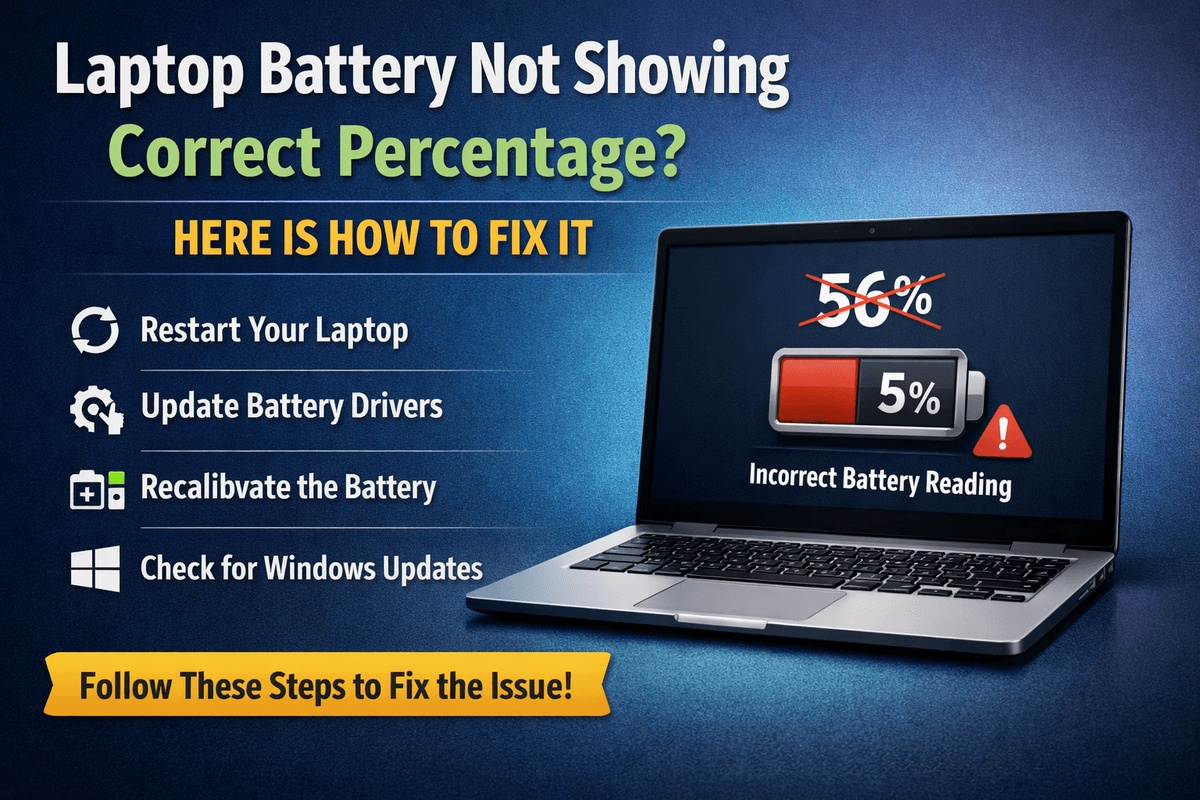
This kind of erratic or sudden percentage drop is a serious symptom of a failing battery. What is actually happening is that the battery cells inside are no longer holding or discharging power in a predictable, stable way. The software that tracks battery percentage is essentially reading inconsistent data from a battery that has lost its internal consistency.
Sometimes this manifests as the laptop going from 20 percent directly to zero and shutting off. Other times the battery seems to hover at one percentage for a long time and then suddenly crash. Either way, if your battery percentage is behaving like a broken gas gauge, do not ignore it.
---
## Symptom 3: Your Laptop Shuts Down Even When Showing Battery Life Remaining
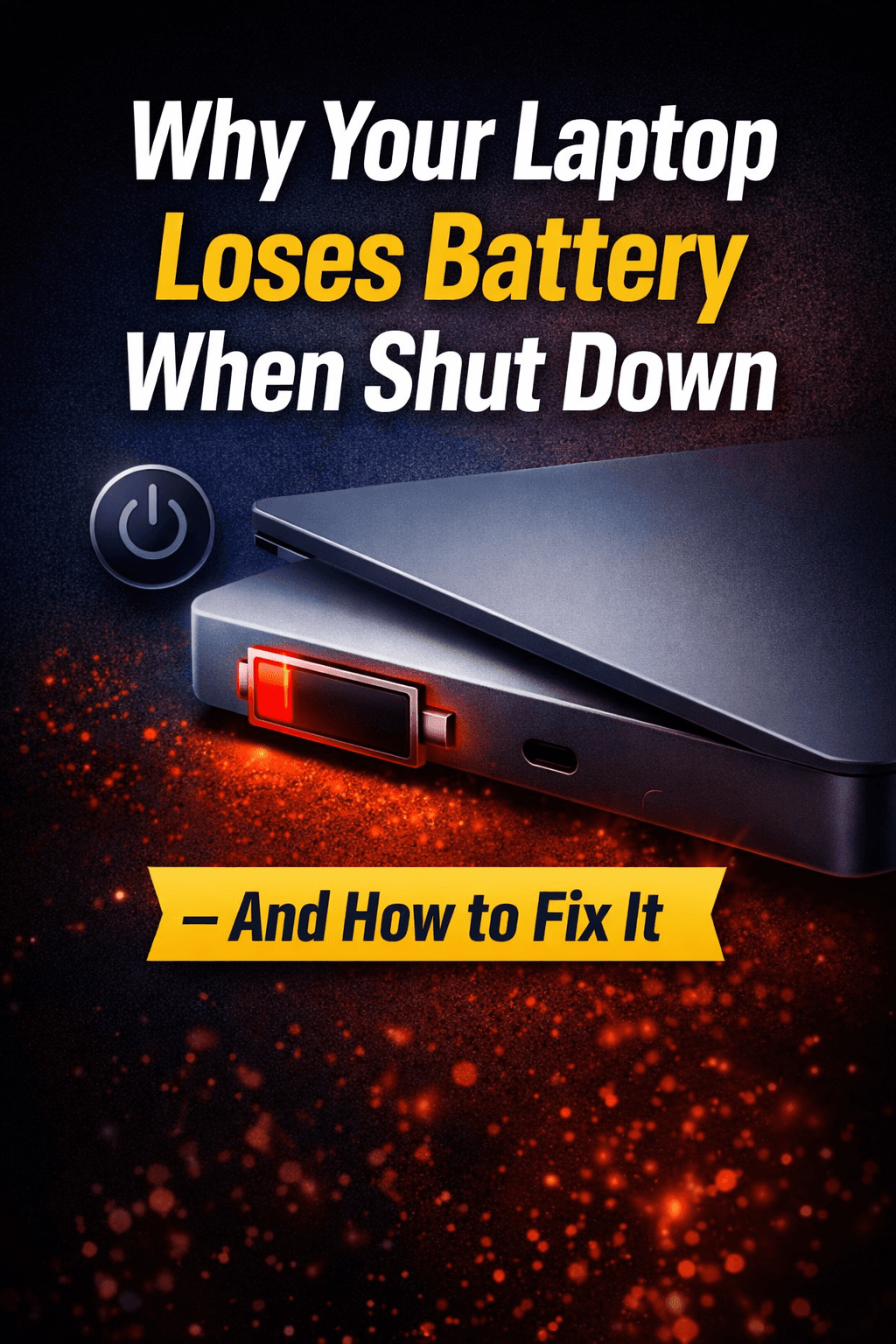
One of the most alarming symptoms of a bad laptop battery is when your device shuts off completely even though the battery indicator is still showing some charge. You might be sitting at 30 percent and the whole machine just goes dark.
This happens because the battery's internal cells have become so degraded that they cannot actually deliver the voltage required to keep the laptop running at load. Even if the battery technically has some energy stored, it cannot release it effectively enough to power the computer during demanding tasks. The laptop's protection circuitry essentially triggers a shutdown rather than risk damage from an unstable power supply.
If your laptop shuts down unexpectedly and you notice it happening more often when you are doing something demanding like gaming, running video editing software, or opening multiple programs at once, that is a very strong indicator that the battery is failing.
Symptom 4: Your Laptop Only Works When Plugged In
This one is quite telling. If you unplug your laptop and it immediately shuts off or refuses to power on without being connected to the charger, your battery has almost certainly failed completely or is on its last legs.
At this stage, the battery is not providing any meaningful power to the system on its own. The laptop has essentially become a desktop computer that must always be tethered to an outlet. While this does not mean the laptop itself is broken, it does mean the battery needs to be replaced as soon as possible if you want any kind of portability back.
This can also happen if the battery has been deeply discharged for a long time and can no longer accept a charge. In some cases, specialized battery recovery software or leaving the laptop plugged in for an extended period can partially revive it, but in most cases, replacement is the only real fix.
---
Symptom 5: The Battery Is Not Charging or Charges Very Slowly
If you plug in your laptop and the charging indicator does not appear, or the battery percentage climbs extremely slowly even after hours of being plugged in, that is another red flag worth paying attention to.
Now, it is worth noting that a slow or failed charge can sometimes be caused by a faulty charger or charging cable rather than the battery itself. The first thing to do is try a different charger or check the cable for any damage. If the problem persists with a known-good charger, the battery itself is likely the issue.
A bad battery can develop internal resistance over time that limits how effectively it accepts incoming charge. In some cases, certain cells within the battery pack may fail entirely, making it impossible for the whole pack to charge properly.
Symptom 6: Your Laptop Gets Unusually Hot Near the Battery
Laptops generate heat during normal use, but there is a difference between normal warmth and worrying heat. If your laptop feels excessively hot, particularly in the area where the battery is located, that could indicate a battery that is swelling, degrading, or experiencing an internal short.
A failing battery may produce more heat than usual during charging or discharge because its internal resistance increases as it ages. This excess resistance means more energy is being wasted as heat rather than doing useful work. In rare but serious cases, a battery can overheat to the point of posing a fire risk, which is why this symptom should never be brushed off.
If your laptop feels hot to the touch even when you are just doing light tasks like browsing or typing, and especially if this is a new development rather than something that has always been the case, have it checked out sooner rather than later.
---
Symptom 7: A Swollen or Bulging Battery
This one is a physical symptom rather than a performance issue, and it is one of the most urgent ones on this list. If you notice that the back of your laptop is slightly raised, the touchpad is pushing upward, or the chassis feels uneven, there is a real possibility that your battery is swelling.
Battery swelling happens when gas builds up inside the battery cells due to chemical breakdown. It is a sign that the battery has become chemically unstable. A swollen laptop battery is not just a performance issue. It is a safety hazard. A badly swollen battery can crack the laptop's casing, damage other internal components, and in extreme situations, rupture and cause a fire or release toxic chemicals.
If you suspect a swollen battery, stop using the laptop immediately and take it to a qualified technician for battery replacement. Do not try to puncture or cut the battery yourself under any circumstances.
Symptom 8: Your Operating System Displays a Battery Warning
Both Windows and macOS have built-in tools that monitor battery health, and sometimes they will tell you directly that there is a problem. On Windows, you might see a notification that says "Consider replacing your battery" or a warning icon appearing over the battery indicator in the taskbar. On Mac, you might see "Service Recommended" or "Service Battery" when you click the battery icon in the menu bar.
These warnings are generated by the operating system's analysis of the battery's charge history and performance data. When the system detects that the battery's maximum capacity has dropped significantly below what it was when new, or that the battery is behaving erratically, it generates these alerts.
Do not dismiss these warnings as glitches or false alarms. While they do occasionally appear due to calibration issues, they are usually a reliable sign that the battery genuinely needs attention.
Symptom 9: The Laptop Takes Forever to Start or Behaves Sluggishly on Battery Power
Here is a symptom that many people do not immediately connect to the battery. If you notice that your laptop runs noticeably slower when unplugged compared to when it is plugged in, and this difference is more dramatic than what you would expect from normal power-saving settings, the battery could be partially to blame.
When a battery is weak or failing, some laptops automatically throttle the processor and reduce system performance in order to reduce power consumption and extend what little battery life remains. This is a self-preservation mechanism built into the system's power management software. The result is that your laptop feels sluggish or laggy on battery power even when you are not doing particularly demanding tasks.
Adjusting power settings can sometimes help, but if the sluggishness only appeared recently alongside other battery symptoms, it is worth investigating the battery health directly.
---
Symptom 10: Your Laptop's Battery Does Not Hold a Charge Overnight
A healthy laptop battery should be able to sit overnight with minimal charge loss, especially in sleep or hibernate mode. If you leave your laptop fully charged at night and wake up to find it significantly drained or even dead, something is wrong.
There are a few possible explanations here. Some background apps and processes prevent the laptop from entering a deep sleep state properly, which causes higher-than-normal drain. But if you have ruled out software causes and the battery is still draining overnight without any apparent reason, it points to a battery that is self-discharging more rapidly than it should.
Self-discharge is a natural property of all batteries, but a degraded battery will lose its charge much more quickly when idle. If this is a new behavior for a laptop that used to hold its charge well overnight, battery replacement is likely in order.
---
How to Check Your Laptop Battery Health
If you are experiencing any of the symptoms above, there are a few ways to get a clearer picture of what is going on with your battery before deciding on next steps.
On Windows, you can generate a detailed battery report by opening Command Prompt or PowerShell and typing the command "powercfg /batteryreport" followed by pressing Enter. This generates an HTML report saved to your user folder that shows your battery's design capacity versus its current full charge capacity, as well as usage history. If the current capacity is significantly lower than the design capacity, your battery has meaningfully degraded.
On a Mac, you can check battery cycle count and condition by holding the Option key and clicking the Apple menu, then choosing System Information, and navigating to the Power section. This will show you the current cycle count and whether the battery condition is listed as Normal, Replace Soon, Replace Now, or Service Battery.
There are also third-party tools available for both platforms, such as BatteryInfoView for Windows and coconutBattery for Mac, that provide more detailed information about battery health in a user-friendly format.
---
When Should You Replace Your Laptop Battery?
Once you have confirmed that your battery is degraded, the decision to replace it comes down to a few factors. If your laptop is otherwise working well and you depend on its portability for work or school, replacing the battery is almost always worth it. A replacement battery from a reputable source typically costs far less than buying a new laptop, and the installation process is relatively straightforward for many laptop models.
If your laptop is quite old and already showing signs of other issues, or if the cost of a new battery is disproportionately high relative to the laptop's current value, it might make more financial sense to put that money toward a newer machine instead.
For swollen batteries, the decision is simple. Replace it without delay for safety reasons, regardless of any other considerations.
---
Tips to Extend Your Laptop Battery Life
While it is true that all batteries eventually degrade, there are habits you can build that will significantly slow down that process and keep your battery healthier for longer.
Try to keep your battery charged between 20 and 80 percent as much as possible. Consistently charging to 100 percent and letting it drain to zero puts more stress on the cells and accelerates wear. Many modern laptops now have settings that let you cap charging at 80 percent specifically for this reason.
Avoid exposing your laptop to excessive heat. Do not leave it in a hot car, and always use it on a hard, flat surface that allows the fans to do their job properly. Keeping the laptop cool is one of the single best things you can do for battery longevity.
If you plan to store your laptop for an extended period without using it, try to leave it at around 50 percent charge rather than fully charged or completely drained. This is the most stable state for lithium-ion cells during long-term storage.
Final Thoughts
A failing laptop battery can feel like a small inconvenience at first, but the symptoms tend to compound over time until your laptop becomes genuinely unreliable. The good news is that batteries are one of the most replaceable components in a laptop, and identifying the problem early gives you time to plan rather than react to a total failure at the worst possible moment.
Whether you are noticing a sudden drop in battery life, unexpected shutdowns, erratic percentage readings, excessive heat, or a visibly swollen casing, all of these are your laptop's way of asking for help. Pay attention to those signals, check your battery health through the tools available to you, and make a decision that keeps your device running the way it should.
Taking care of your battery is ultimately part of taking care of your laptop, and that investment of attention pays off every single time you close the lid and trust that your machine will be ready when you open it again.
Try Our Battery Cycle Life Calculator
Estimate remaining battery cycle life and replacement timing.
Battery Cycle Life Calculator
Estimate remaining cycles and replacement timeline
Device
Usage & Health
Frequently Asked Questions

Written by
BatteryGuides Editorial Team
Our team of battery experts researches and tests every guide to ensure accuracy. We're committed to helping you get the most out of your phone, laptop, and solar batteries.