Guides for a new Laptop battery
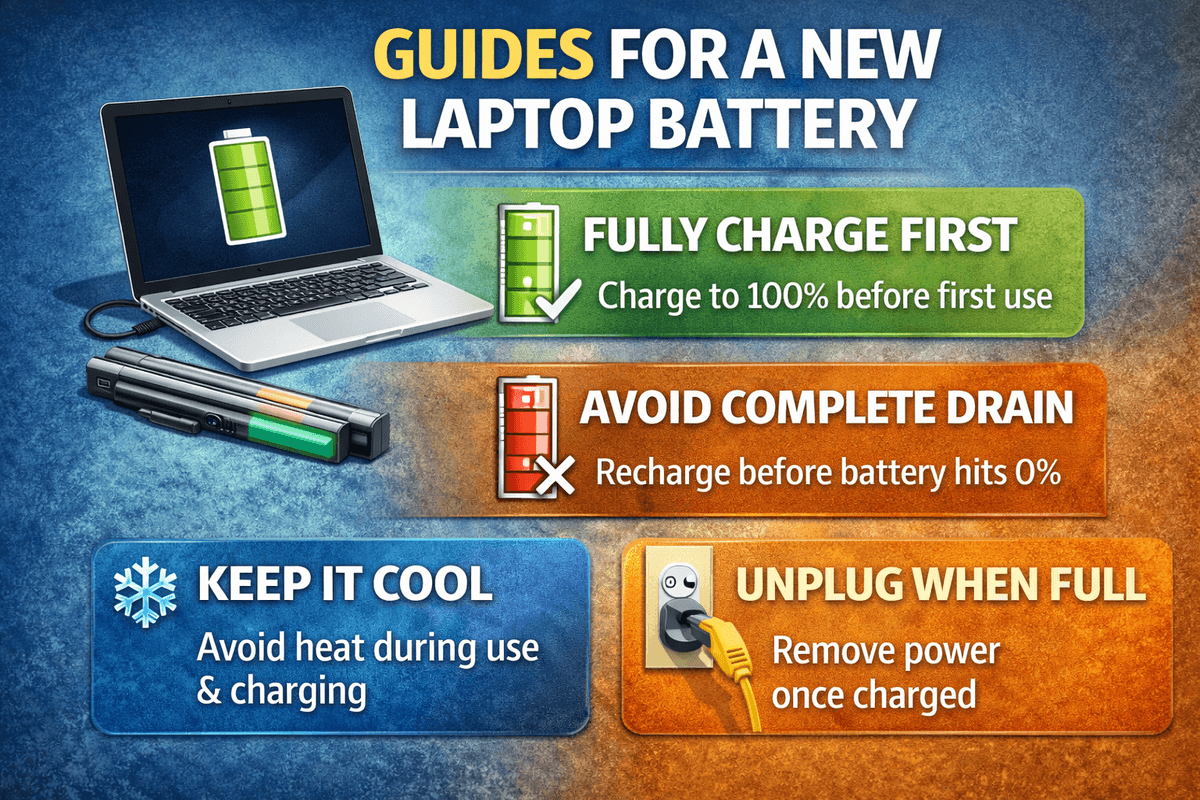
Table of Contents
- What to Check When You First Open the Package
- How to Install a Laptop Battery the Right Way
- Understanding the Charge Level of a New Laptop Battery
- How to Charge Your Laptop Battery for Maximum Lifespan
- How Long Does a Laptop Battery Last?
- Tips to Extend Your Laptop Battery Life
- How to Store Your Laptop Battery Properly
- Laptop Battery Indicator Lights — What Do They Mean?
- Laptop Battery Safety — What You Should Never Do
- Warranty Coverage for Your Laptop Battery — What You Need to Know
- Final Thoughts on Laptop Battery Care
If you just got a new laptop battery or you are trying to get the most out of the one you already have, you are in the right place. A laptop battery is one of those things people rarely think about until it starts causing problems. But the truth is, how you install, charge, store, and maintain your laptop battery has a massive impact on how long it lasts and how well it performs. This complete laptop battery guide covers everything you need to know, from the moment you open the box to getting years of reliable use out of your battery.
What to Check When You First Open the Package
The very first thing you should do when your laptop battery arrives is inspect both the packaging and the battery itself. Make sure nothing is cracked, dented, swollen, or visibly damaged. A battery that has been damaged during shipping should never be installed or used. Also, before anything else, confirm that the battery you received is compatible with your specific laptop model. Using an incompatible battery is not only ineffective but can also be dangerous. Always match the battery to your laptop's specifications.
One more important note right from the start — when the time comes to dispose of your old laptop battery, never throw it in your regular household trash. Laptop batteries contain chemical compounds that are harmful to the environment and must be handed in at an official recycling or collection point in your area.
How to Install a Laptop Battery the Right Way
Installing a laptop battery is straightforward but it needs to be done carefully. Gently slide the battery into the battery compartment of your notebook, making sure it fits snugly and locks into place properly. Most laptops have a locking mechanism and you should always confirm that the battery is secured in the locked position before powering on the device.
Do not force the battery in if it does not slide in smoothly. Forcing it could damage both the battery and the laptop's battery slot. If you are unsure about the installation process, refer to the operating manual that came with your laptop for model-specific instructions.
Understanding the Charge Level of a New Laptop Battery
Here is something a lot of people do not realize — a brand new laptop battery does not come fully charged. When you first take it out of the box, the charge level is typically somewhere between 20 and 80 percent. This is completely normal and it is actually intentional. Manufacturers store batteries at a partial charge to preserve their long-term health during transportation and storage.
Because of this, it is strongly recommended that you charge your new laptop battery immediately after installation. The first charge might take longer than usual, sometimes up to 12 hours, so it is best to do it overnight or when you do not need your laptop for an extended period. After that initial charge, a full charge from empty will typically take between 2 to 4 hours depending on the battery capacity and the charger being used.
How to Charge Your Laptop Battery for Maximum Lifespan
For the first two to four uses of a new laptop battery, it is a good idea to let the battery fully discharge before charging it back up completely. To do this, simply unplug your laptop from the power outlet and use it on battery power alone until the notebook shuts itself down due to a completely drained battery. Then charge it back to 100 percent. Repeating this process a few times in the beginning helps condition the battery and gives it a better chance of achieving its maximum capacity over time.
The laptop battery can be charged safely within a temperature range of 5 to 35 degrees Celsius. Charging outside of this range, especially in very hot or very cold conditions, can cause damage to the battery cells and reduce overall lifespan.
How Long Does a Laptop Battery Last?
Under normal conditions, a laptop battery is rated to last between 500 and 800 charge cycles, which typically translates to roughly 1.5 to 3 years of regular use. Lithium-ion batteries, which are the most common type used in modern laptops, have a finite number of charge cycles built into them. Once those cycles are used up, the battery will hold significantly less charge than it originally did.
The actual usage time you get from a single charge depends on several factors including how demanding your tasks are, which applications and software you are running, how bright your screen is, whether you have external devices connected, and the temperature of your environment. All of these variables affect how quickly your battery drains during use.
Tips to Extend Your Laptop Battery Life
Getting the most out of your laptop battery does not require complicated routines. A few simple habits can make a big difference in how long your battery serves you well.
Lowering your screen brightness is one of the single most effective ways to reduce battery drain during use. Screens consume a surprisingly large portion of a laptop's total power, so even dropping the brightness by a few notches can meaningfully extend your usage time on a single charge.
Take advantage of your laptop's built-in power saving or battery saver mode. This feature reduces background activity and limits power consumption from components that are not actively in use. Closing unnecessary programs and browser tabs also helps reduce the load on your processor and in turn your battery.
Disconnecting external devices like USB drives, external mice, or headphones when you are not using them is another small but effective step. Each connected device draws power from your laptop battery.
If you primarily use your laptop while plugged into the wall and rarely rely on battery power, consider removing the battery from the laptop entirely during those long sessions. Keeping a fully charged battery constantly plugged in at high temperatures can accelerate its degradation over time.
Getting your laptop serviced at least once a year is also a good idea. Dust buildup inside the laptop can cause the cooling system to work harder, which raises internal temperatures and negatively affects battery health.
How to Store Your Laptop Battery Properly
If you are planning to store your laptop battery for an extended period, doing it correctly will preserve its health significantly. The ideal charge level for long-term storage is between 40 and 75 percent. Storing it fully charged or completely empty can both cause problems.
Keep the battery in a dry, cool place away from direct sunlight and heat sources. Storing it in an antistatic plastic bag adds an extra layer of protection. Avoid leaving the battery in a hot car or near any heating equipment.
One critical rule to remember is to never store a completely empty laptop battery. If a lithium-ion battery is left at zero percent for an extended time, the cells can lose voltage to a point where the battery can no longer be charged or used at all. Even if you are not using the battery, give it a quick charge every three months to keep it alive and functional.
Laptop Battery Indicator Lights — What Do They Mean?
Most laptops have a small LED indicator that tells you the current status of your battery. While the exact behavior can vary by model, the general pattern is fairly universal. A blinking green light typically means the battery is actively charging. A solid green light means the battery is fully charged. A blinking red light is a warning that the battery is running low and you should plug in your charger soon. If the indicator light is completely off, the battery is empty and needs to be charged before the laptop can be used.
Always refer to your specific laptop's instruction manual for accurate information about what each indicator pattern means for your device.
Laptop Battery Safety — What You Should Never Do
Laptop battery safety is not something to take lightly. Lithium-ion batteries, when handled improperly, can become a fire or shock hazard. There are several important rules to follow to keep yourself and your equipment safe.
Never charge your laptop or leave it plugged in during a lightning storm. Power surges caused by lightning can damage the battery and other components of your laptop. Always use a charger that is compatible with your laptop and battery. Charging with an incompatible device can cause overvoltage or overheating.
Avoid dropping or shaking the battery. Physical damage to a lithium battery can be dangerous and may not always be visible from the outside. Never attempt to open, repair, or modify the battery yourself under any circumstances.
Keep the battery away from any liquids. A wet battery poses a serious risk of electric shock and fire. Similarly, do not expose the battery to direct sunlight or place it near any heat source when it is outside the laptop.
Warranty Coverage for Your Laptop Battery — What You Need to Know
Every laptop battery comes with a 6-month manufacturer warranty starting from the date shown on your purchase document. This warranty covers defects that arise from the manufacturing process. If a legitimate defect is found within this period, the defective battery will be replaced with a new equivalent one.
To make a valid warranty claim, you will need to provide the original purchase receipt or a copy of it showing the transaction date, product name, serial number, or product code. It is the customer's responsibility to notify the seller of any defect as soon as it is discovered.
There are important situations where the warranty does not apply. If the battery was charged using an incorrect or incompatible charger, if it was dropped or physically damaged, if it received an overvoltage, if it was short-circuited, if someone attempted to open it, or if the serial numbers or stickers were removed or damaged, the warranty claim will not be valid.
If you run into an issue with your battery, contact the seller by phone or email with a detailed description of the problem. Send the faulty battery along with a copy of your purchase document. If the battery qualifies under warranty conditions, the seller will either repair or replace it within 30 days of receiving the defective unit. If repair or replacement is not possible, the cost of the battery will be reimbursed along with any agreed upon shipping costs.
Final Thoughts on Laptop Battery Care
Your laptop battery is one of the most important and most overlooked components of your entire setup. Taking care of it properly from the very beginning, charging it correctly, storing it at the right charge level, keeping it away from extreme temperatures, and following basic safety rules will all add up to a significantly longer and more reliable battery life.
For more detailed guides on batteries, chargers, and everything related to power management, stay connected with bestbatteryguide.com where we make battery knowledge simple, practical, and genuinely useful for everyday people.
Try Our Battery Cycle Life Calculator
Estimate remaining battery cycle life and replacement timing.
Battery Cycle Life Calculator
Estimate remaining cycles and replacement timeline
Device
Usage & Health
Frequently Asked Questions

Written by
BatteryGuides Editorial Team
Our team of battery experts researches and tests every guide to ensure accuracy. We're committed to helping you get the most out of your phone, laptop, and solar batteries.