Laptop Battery Not Showing Correct Percentage? Here Is How to Fix It
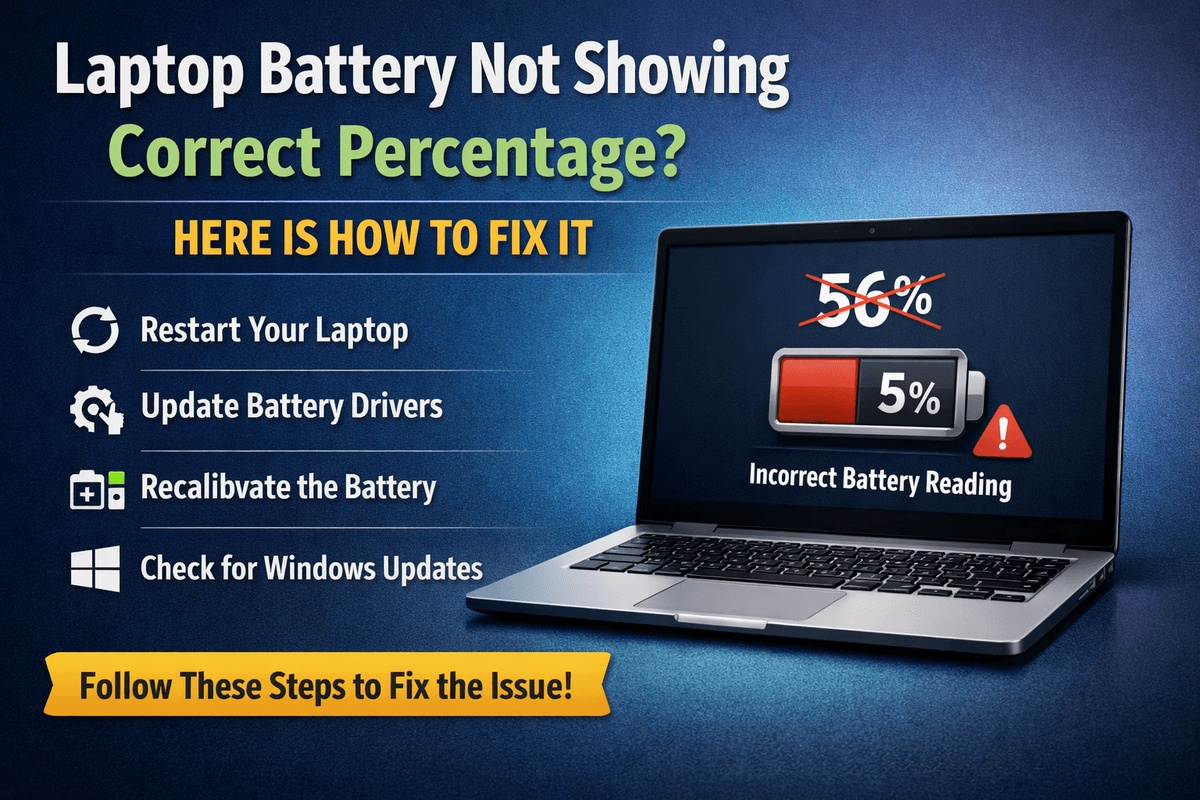
Table of Contents
- Why Your Laptop Battery Shows the Wrong Percentage
- How to Fix Laptop Battery Not Showing Correct Percentage on Windows
- Method 1: Recalibrate Your Battery
- Method 2: Update or Reinstall the Battery Driver
- Method 3: Run the Windows Battery Report
- Method 4: Adjust Power Plan Settings
- Method 5: Check for Windows Updates
- Method 6: Use a Third Party Battery Diagnostic Tool
- How to Fix Laptop Battery Not Showing Correct Percentage on MacBook
- Method 1: Reset the SMC
- Method 2: Reset NVRAM and PRAM
- Method 3: Run Apple Diagnostics
- Method 4: Check Battery Cycle Count
- Method 5: Update macOS
- When Should You Replace Your Laptop Battery?
- Tips to Keep Your Battery Percentage Accurate Going Forward
There are few things more frustrating than watching your laptop suddenly shut down when the battery indicator was showing 40 percent just moments ago. Or perhaps your device insists it is fully charged yet dies within minutes of unplugging. If you have ever experienced your laptop battery not showing the correct percentage, you are definitely not alone. This is one of the most common complaints among laptop users worldwide, and the good news is that it is almost always fixable.
In this comprehensive guide, we will walk you through exactly why this happens, what causes the battery meter to lie, and most importantly, how you can restore accurate battery readings on both Windows and MacBook laptops. Whether you are a casual user or a tech enthusiast, this article has everything you need.
Why Your Laptop Battery Shows the Wrong Percentage

Understanding the root cause of the problem is the first step toward solving it. Your laptop does not directly measure the remaining charge in the battery the same way a fuel gauge works in a car. Instead, it relies on a small chip inside the battery called a Battery Management System (BMS) or a fuel gauge IC that tracks charge cycles, voltage levels, and temperature data to estimate how much capacity remains.
Over time, this system can lose its accuracy due to several factors. The most common reasons your laptop battery percentage is incorrect include the following.
Battery Calibration Drift is perhaps the single most frequent cause. Every rechargeable lithium battery naturally loses a small amount of its maximum capacity after each charge cycle. When the software tracking this capacity does not update properly, the readings shown on screen no longer match reality. Your laptop may think it has a full 100 percent battery when the actual usable capacity has declined significantly.
Outdated or Corrupt Battery Drivers play a major role on Windows laptops. The battery driver is the software bridge between your operating system and the physical battery hardware. When this driver becomes outdated, corrupted, or incompatible after a system update, the percentage readings it reports can become wildly inaccurate.
Aged Battery Cells naturally degrade over time. After 300 to 500 complete charge cycles, most lithium batteries start showing noticeable signs of wear. The cells become uneven in their charge distribution, making it nearly impossible for the BMS to accurately calculate remaining power.
Temperature Extremes cause the battery chemistry to behave unpredictably. If you regularly use your laptop in very hot or very cold environments, the chemical reactions inside the battery cells change, causing temporary or even permanent inaccuracies in the charge readings.
Software and OS Glitches can sometimes corrupt the battery status data stored in your system. A failed update, sudden shutdown, or background software conflict can cause the operating system to display stale or incorrect battery information.
A Failing or Swollen Battery is a more serious concern. If your battery has physically swollen or is at the end of its life, no amount of software fixes will produce accurate readings. In this case, a battery replacement is the only solution.
How to Fix Laptop Battery Not Showing Correct Percentage on Windows
Windows users have several reliable methods available to restore accurate battery readings. Try these solutions in order, starting with the simplest.
Method 1: Recalibrate Your Battery
Battery calibration is the process of resetting the battery's internal charge tracking system so it accurately reflects the true capacity of your battery cells. This method works particularly well when your battery percentage jumps suddenly or does not match actual usage time.
To calibrate your Windows laptop battery, start by fully charging your device to 100 percent and keep it plugged in for an additional two hours after it reaches full charge. This ensures the cells are completely saturated. Next, go to your Power Options settings and temporarily set your laptop to never sleep and never hibernate. Now unplug the charger and let the battery drain completely until the laptop powers off on its own. Leave it off for five to six hours. After that, plug it back in and charge it fully without interruption. Once it reaches 100 percent, your battery meter should be significantly more accurate.
Method 2: Update or Reinstall the Battery Driver
Open the Device Manager by right clicking the Start button and selecting it from the menu. Expand the Batteries section and you will find two entries: Microsoft AC Adapter and Microsoft ACPI Compliant Control Method Battery. Right click on the second one and select Uninstall Device. Confirm the uninstallation and then restart your laptop. Windows will automatically reinstall the correct battery driver on startup, which often resolves incorrect percentage readings caused by driver corruption.
Method 3: Run the Windows Battery Report
Windows has a built in diagnostic tool that generates a detailed battery health report. Open Command Prompt as administrator and type the following command: powercfg /batteryreport. This will generate an HTML report saved in your user folder. Open this report and look at the Design Capacity versus Full Charge Capacity values. If your Full Charge Capacity is significantly lower than the Design Capacity, your battery has degraded and may need replacement.
Method 4: Adjust Power Plan Settings
Sometimes the issue is not with the battery itself but with how Windows is managing power. Open Control Panel, navigate to Power Options, and select Change Plan Settings followed by Change Advanced Power Settings. Look for the Battery section and make sure the critical battery level and low battery level percentages are set to reasonable values. Incorrect threshold settings here can cause the laptop to shut down at what appears to be a much higher percentage than it should.
Method 5: Check for Windows Updates
Microsoft frequently releases updates that include fixes for battery management and power reporting. Open Settings, go to Windows Update, and install any pending updates. After updating and restarting, check whether your battery percentage has become more accurate.
Method 6: Use a Third Party Battery Diagnostic Tool
Tools like BatteryInfoView or HWiNFO provide extremely detailed information about your battery status including wear level, charge cycles, current voltage, and temperature. These tools can confirm whether the problem is hardware related or software related, helping you decide whether a calibration fix is sufficient or whether a battery replacement is necessary.
How to Fix Laptop Battery Not Showing Correct Percentage on MacBook
MacBook users deal with a different ecosystem but similar problems. Apple's macOS manages battery reporting through a system called SMC (System Management Controller) and maintains detailed battery cycle data. Here are the most effective fixes.
Method 1: Reset the SMC
The System Management Controller handles power, battery, fans, and other hardware functions on Mac computers. Resetting it can instantly fix incorrect battery readings.
On MacBooks with Apple Silicon (M1, M2, M3 chips), you simply shut down the Mac, wait 30 seconds, and then turn it back on. The SMC equivalent resets automatically.
On Intel MacBooks with a non removable battery, shut down the Mac completely. Press and hold Shift, Control, Option, and the Power button all at the same time for 10 seconds. Release all keys and then press the Power button to turn the Mac back on.
Method 2: Reset NVRAM and PRAM
NVRAM stores certain settings including some related to power management. To reset it, shut down your Mac and then turn it on while immediately holding Command, Option, P, and R together. Hold these keys for about 20 seconds until you hear the startup chime a second time (on older Macs) or until the Apple logo appears and disappears a second time.
Method 3: Run Apple Diagnostics
Apple has built in hardware diagnostics that can identify battery issues. Shut down your Mac and turn it on while holding the D key. This will boot into Apple Diagnostics mode and run a complete hardware check. If there is a battery fault, it will be reported here with an error code you can look up or share with an Apple technician.
Method 4: Check Battery Cycle Count
Every MacBook battery has a maximum cycle count, typically between 500 and 1000 cycles depending on the model. To check yours, click the Apple menu, hold the Option key, and click System Information. Navigate to the Power section and look for the Cycle Count and Condition fields. If the condition shows Service Recommended, your battery needs to be replaced.
Method 5: Update macOS
Apple regularly pushes firmware and software updates that improve battery calibration accuracy. Open System Settings or System Preferences, go to Software Update, and install any available updates. Many users report that a single macOS update resolved their inaccurate battery percentage issues entirely.
When Should You Replace Your Laptop Battery?
Sometimes the problem goes beyond software and calibration. Here are clear signs that it is time for a new battery rather than another troubleshooting attempt.
Your battery swells or feels physically warm even when not in heavy use. The laptop shuts down unexpectedly at 20 percent or higher despite multiple calibration attempts. The battery report shows Full Charge Capacity at less than 50 percent of the original Design Capacity. The battery percentage drops by 10 or more points within a few minutes of unplugging. Your laptop only works when plugged in and dies immediately upon removing the charger.
If you experience any of these situations, replacing the battery is the most practical and cost effective solution. For most laptops, a battery replacement costs between 30 and 100 dollars depending on the model, and can be done by a local repair technician or even yourself with the right tools.
Tips to Keep Your Battery Percentage Accurate Going Forward
Prevention is always better than cure. Adopting a few simple habits can keep your battery reporting accurately for much longer.
Avoid letting your battery drain completely to zero on a regular basis. Lithium batteries perform best when kept between 20 percent and 80 percent charge. Storing your laptop in extreme temperatures shortens battery life and disrupts charge tracking. If you plan to store your laptop for an extended period, charge it to around 50 percent before putting it away. Avoid using cheap or third party chargers that do not regulate voltage properly, as unstable charging can throw off the battery management system. Perform a full calibration cycle every three to four months to keep the charge tracking accurate.
Try Our Battery Health Checklist
Run a quick health check to spot early battery problems.
Battery Health Checklist
Answer 8 quick questions to diagnose your battery
Does your battery drain from 100% to 0% in less than 6 hours with normal use?
Frequently Asked Questions

Written by
BatteryGuides Editorial Team
Our team of battery experts researches and tests every guide to ensure accuracy. We're committed to helping you get the most out of your phone, laptop, and solar batteries.